Tag Archives: iOS devices

Watercolour Art Stickers for a Spooky Season!

Halloween Watercolour Art Stickers in piZap

It’s that time of year again! Time to break out the orange and black streamers, pumpkins, and costumes. And what better way to add some flair to your posts and decors than with some watercolour art stickers? Whether you’re looking for something to liven up your social media posts or you want to add a bit of personality to your child’s school notebooks by printing these piZap art stickers — just perfect for the spooky season! You can check piZap in the web and iOS devices.
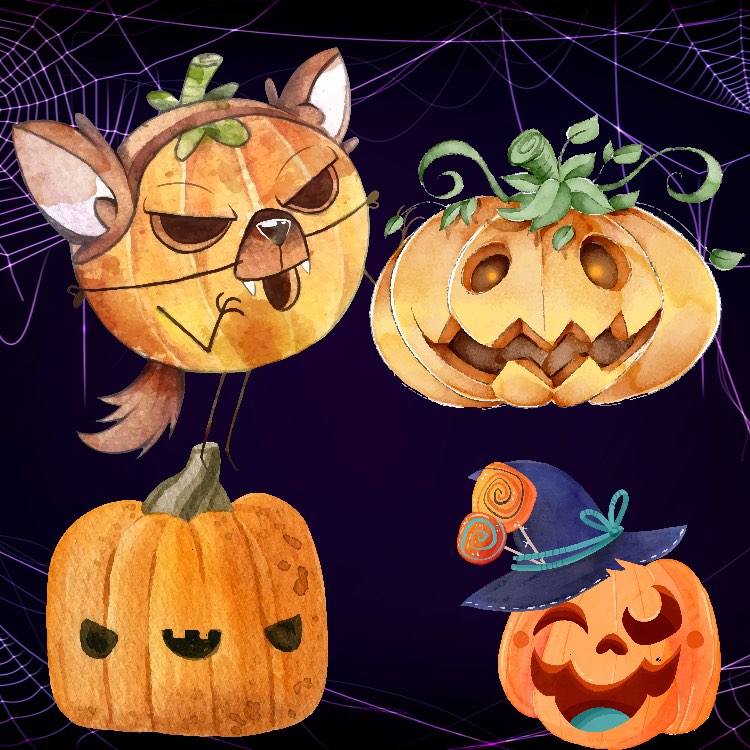
Pumpkin watercolour art stickers

Spooky Pumpkin and Everything Scary
What says halloween season more than the classic pumpkin scary faces? You can enjoy using these spooky pumpkins spice with these watercolour art stickers from piZap! Each sticker is hand-painted with watercolours and filled with all the classic halloween spirits and ghostly characters. These stickers are sure to add a touch of warmth to your memes, posts, party invitations, and halloween greetings!

Watercolour bat art stickers

Bats in the Belfry
What’s spookier than a bat? If you’re looking to add a little excitement to your décor this Halloween season, look no further than these spooky bat watercolour art stickers made in piZap! Its hand-painted with black watercolours and accented with purple pinkish paint to give them a truly creepy look. Best of all, you can stick them anywhere—from your child’s school notebook to your office cubicle. Just be careful not to let them fly away!

Watercolour art halloween costume sticker

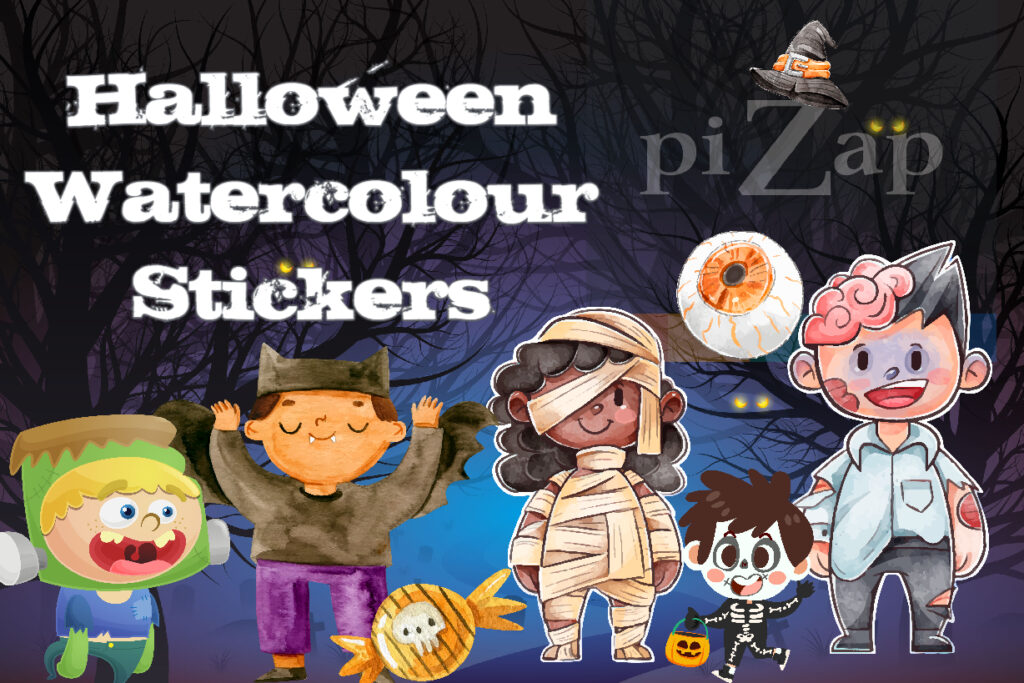
Halloween Costume Stickers
No Halloween season would be complete without those awesome Halloween Costumes —and these Halloween stickers are especially made in watercolour art — just the perfect stickers you can use in your halloween posters and memes in piZap!
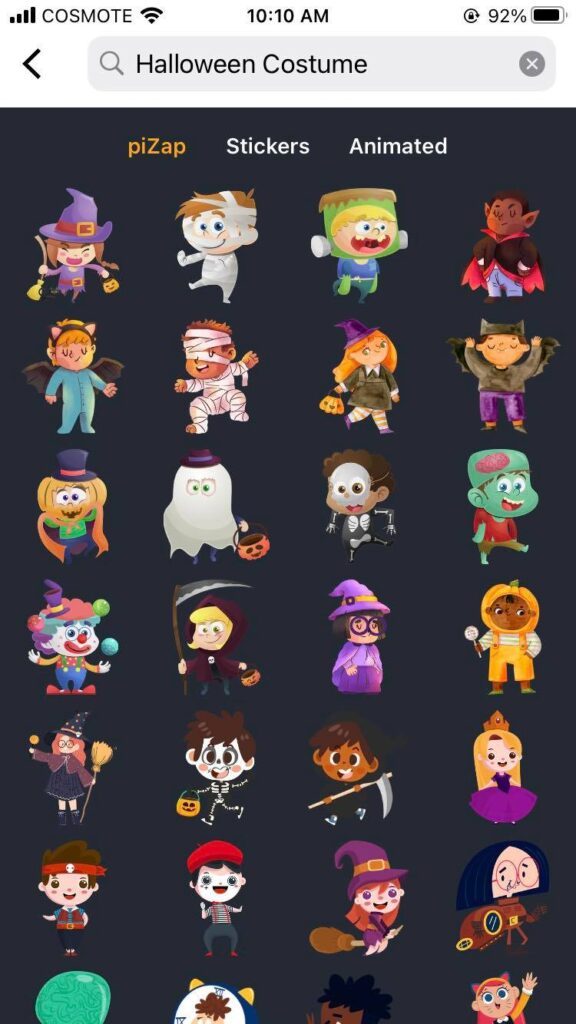
piZap in iOS app

Whether you’re looking for a funny Halloween costume character to keep your posters fun and spooky, these halloween stickers are sure to please everyone. So why not give one (or two… or three!) a try today?

piZap.com

More Halloween Watercolor Art Stickers Ideas Simply look for your favorite halloween stickers in piZap. Add some background and effects, and stick them to display a little bit of Halloween cheer.
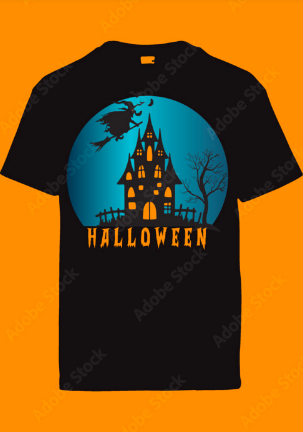
tshirt halloween design

You can print and stick them on your notebooks, walls, objects, just to add a pop of color, but they would also look great on a shirt or even a computer screen. If you’re feeling really creative, you could even use them to decorate a pumpkin!

-Planner
-T-shirt print
-Computer Screen
-Pumpkin
-Halloween Card
-Scrapbooking
-Decorating Your Cubicle at Work
-ANYTHING Else You Can Think Of!

t-shirt halloween art design

So there you have it—just a few ideas of what you can do with those Halloween watercolour art stickers in piZap! They’re perfect for adding a little spooky flair to your stuffs! Let your imagination run wild and have fun creating something special this season. After all, what’s the point of having all those cute stickers if you’re not going to use them? Check them out in the piZap web and iOS devices!
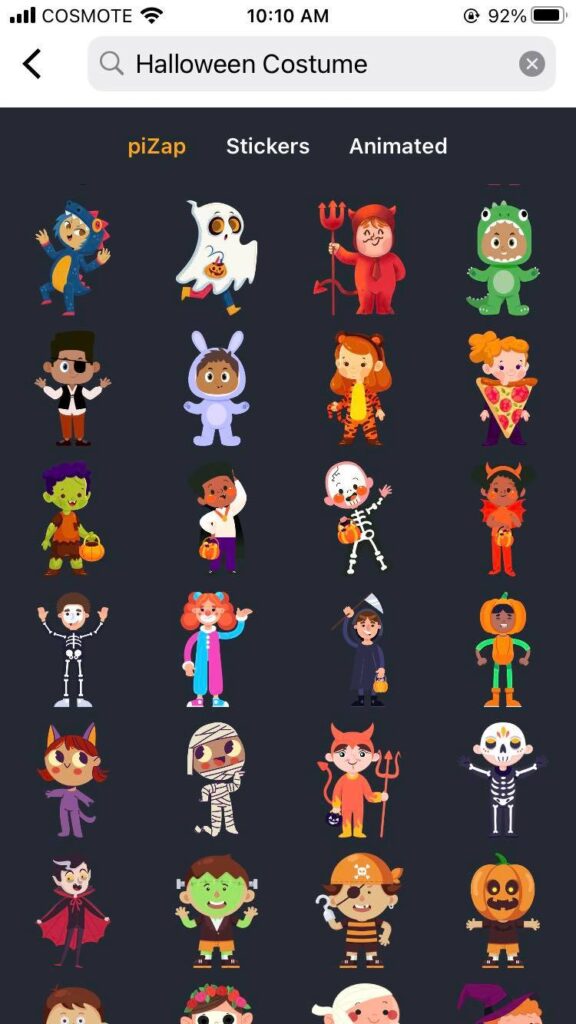

iOS piZap app

How to Create a Watermark for Your Images with piZap

A watermark is a logo or other graphic that is placed on an image to protect it from being used without permission. Watermarks can be very difficult to remove, so they are often used by businesses and photographers to prevent their images from being stolen.

But what is a watermark, and how do you create one? A watermark is simply a logo or bit of text that you add to an image. When someone tries to copy or save the image, the watermark will be visible, making it clear that the image is copyrighted.

While there are many ways to create a watermark, piZap is one of the easiest tool that you can use. Simply upload your image, create your watermark, and pizap will do the rest. In just a few clicks, you can create a watermark that will help protect your images from being used without permission. With piZap, you can easily add text or logos to your images. You can also customize the size, color, and position of your watermark.

How to make a watermark using the piZap app the easy way.

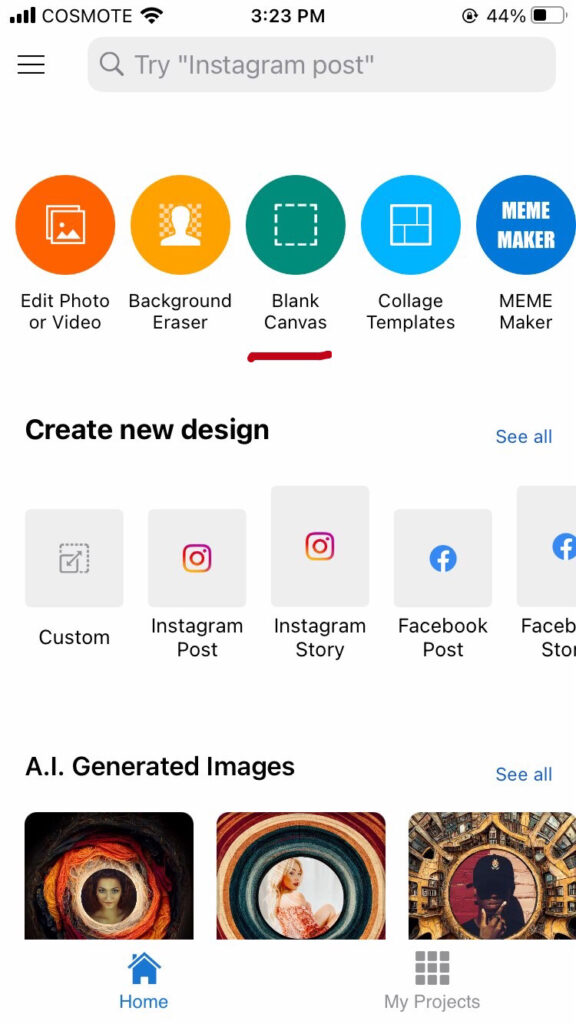
  1. Choose BLANK CANVAS .
piZap app in iOS

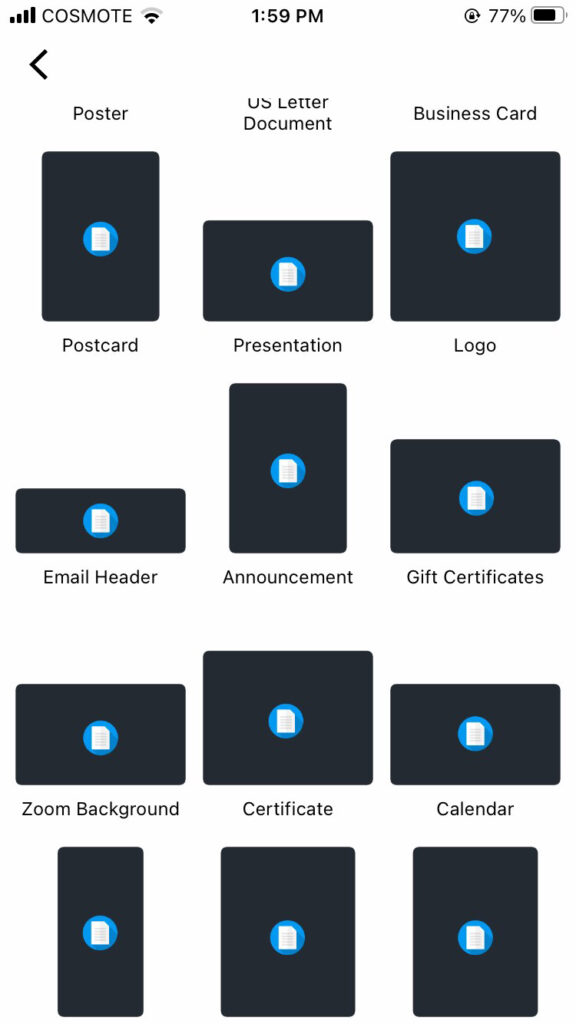
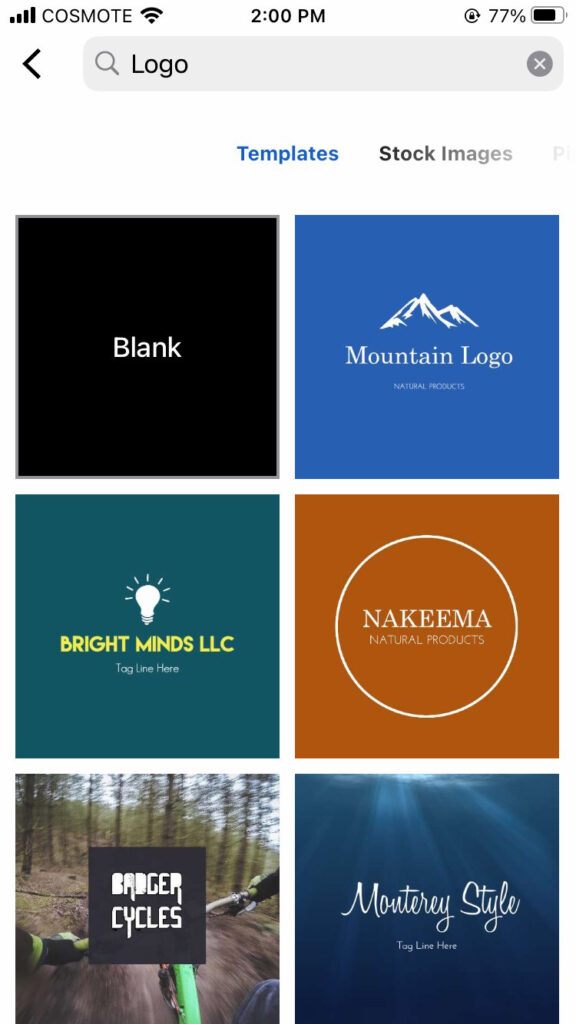
2. Select LOGO as your template. Open your logo, or make one using piZap‘s available logo templates.

piZap app in iOS
piZap app in iOS

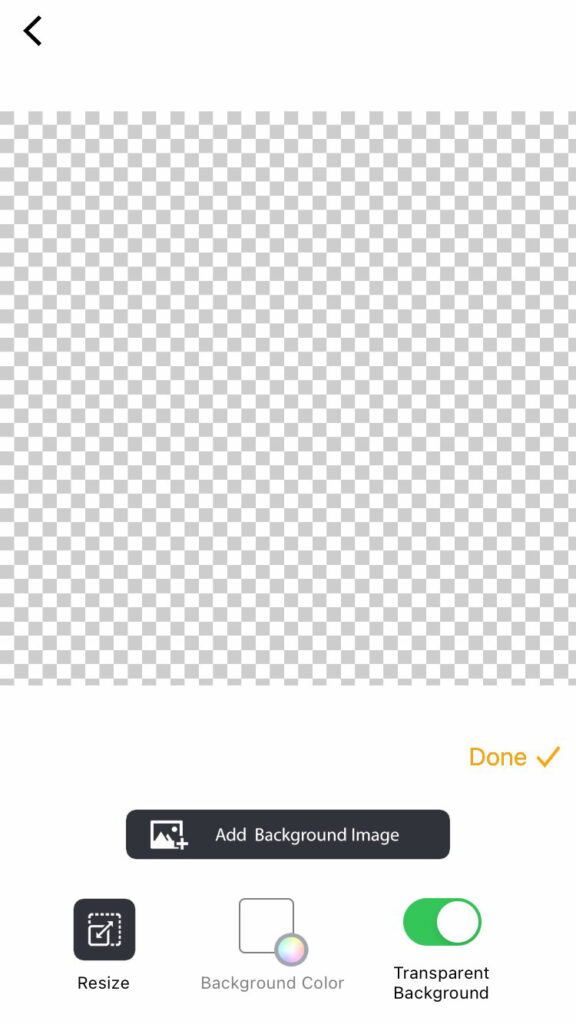
3. Choose TRANSPARENT BACKGROUND for your image. This will help your image background to be transparent when added in the photo that you want to have a watermark.

piZap app in iOS

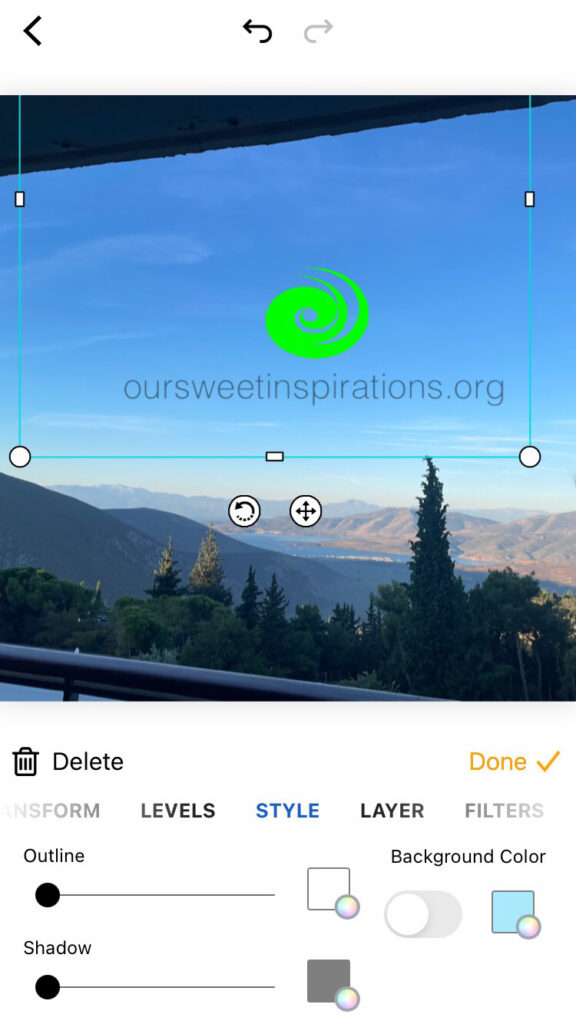
4. Once you have added the image or logo that you want to use as a watermark, you can simply SAVE it and use it with any of your photos that you would like to be protected from the public.

piZap app in iOS

So if you’re looking for a quick and easy way to protect your images, head over to piZap and start creating watermarks!

Quick Tips on Making a Hilarious Meme

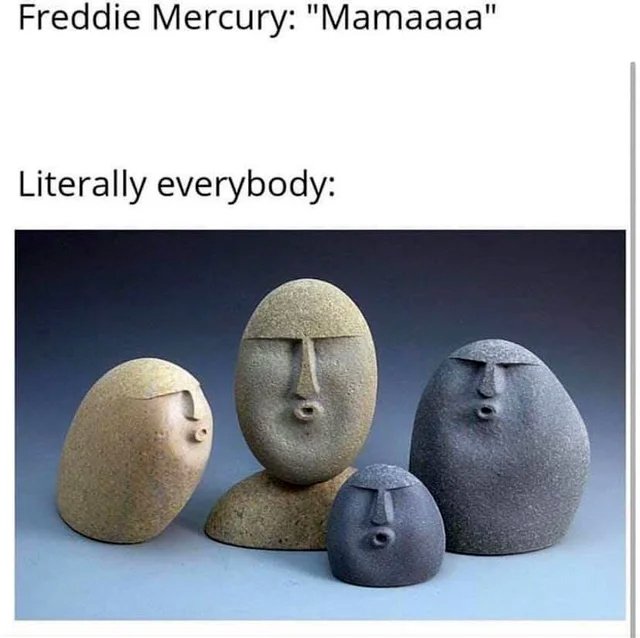
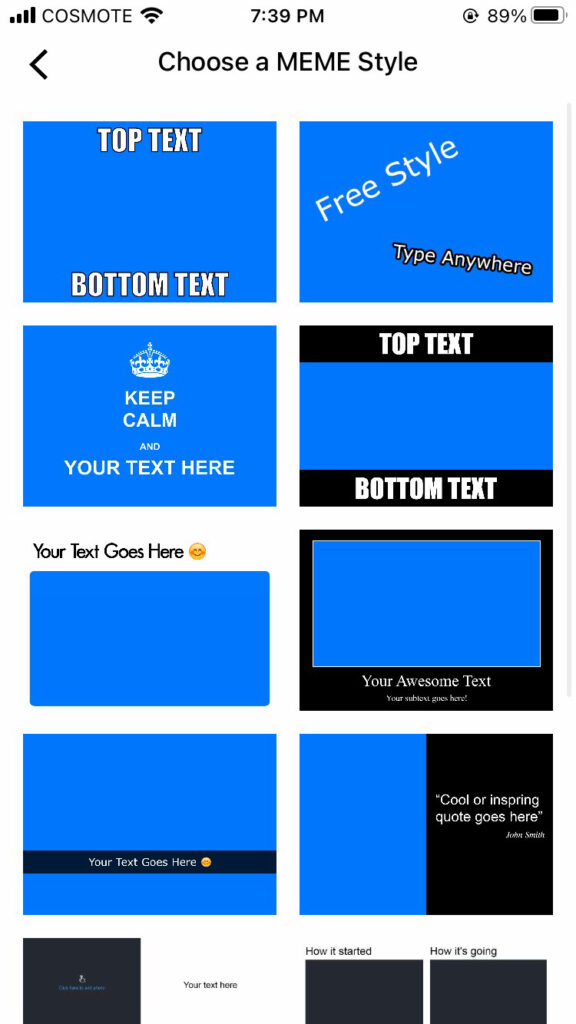
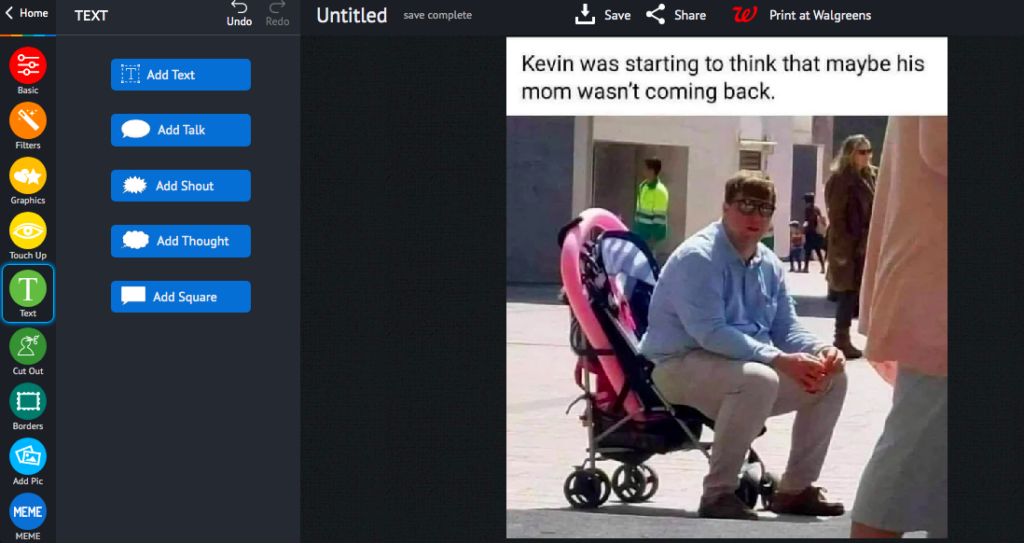
If you’re looking to get a good laugh, there’s no better way than by creating a hilarious meme. But where do you start? Luckily, pizap photo editor has everything you need to get the job done. With pizap, there are ready made meme templates and you can even easily access a library of high quality images that are perfect for memes.

Create meme-worthy photos that will have your friends laughing for days. Here are some tips for making the most of pizap:

  • Use high-contrast images for maximum impact. Black and white photos work well, or you can go for a bright, colorful image.
  • Make sure your text is easy to read. Use a large font size and clear, concise wording.
  • Have any pets? They make great meme material!
  • Use pop culture references to make memes that are relevant and timely.
  • Use pizap’s built-in templates and sharing tools to share your meme with the world! Pizap offers a wide range of tools to help you customize your memes. For example, you can add text, change the color scheme, and even add filters. So whatever your vision is for your meme, pizap has you covered.
www.pizap.com

With just a few clicks, you can post your creation to social media or send it to a friend via email or text. You can also try using the piZap app to create funny memes in iOS devices and android devices.

iOS device
iOS device

These are just some of the many things you can do to make hilarious memes! Be creative, have fun, and most importantly, don’t take yourself too seriously! 🙂

www.pizap.com

How to Make a YouTube Thumbnail in piZap

YouTube is a great way to share your videos with the world. But if you want people to actually watch your videos, you need to have a good thumbnail. A thumbnail is like a movie poster- it’s what shows up on YouTube when people are browsing for something to watch. And let’s face it, we all judge a book by its cover. That’s why it’s important to make a good impression with your thumbnail. Fortunately, creating a thumbnail in piZap is easy and fun!

piZap is a free online photo editor that’s perfect for creating YouTube thumbnails. You don’t need any design experience, and it only takes a few minutes to make a professional-looking thumbnail. Plus, piZap offers a wide range of tools and effects that you can use to make your thumbnail stand out. Here’s how to do it:

  1. Go to pizap.com (and create a free account in case you don’t have one yet).

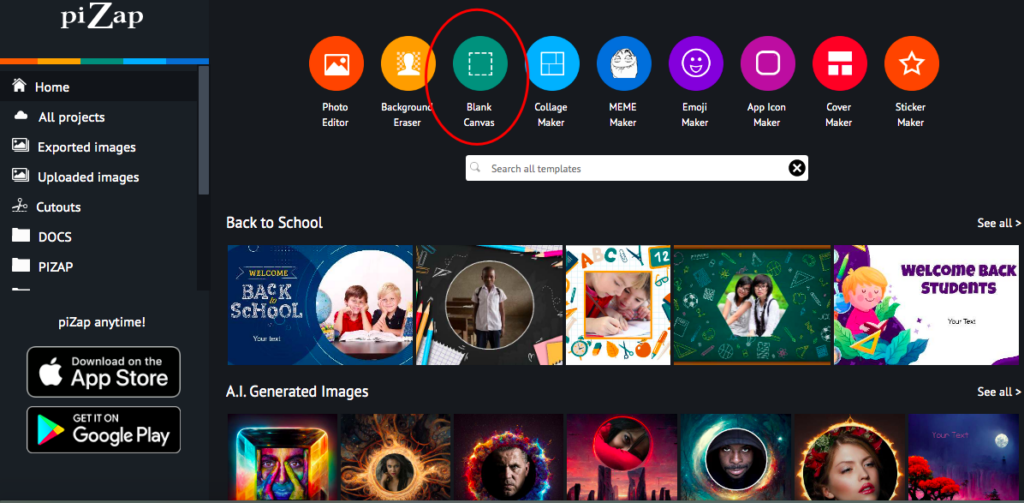
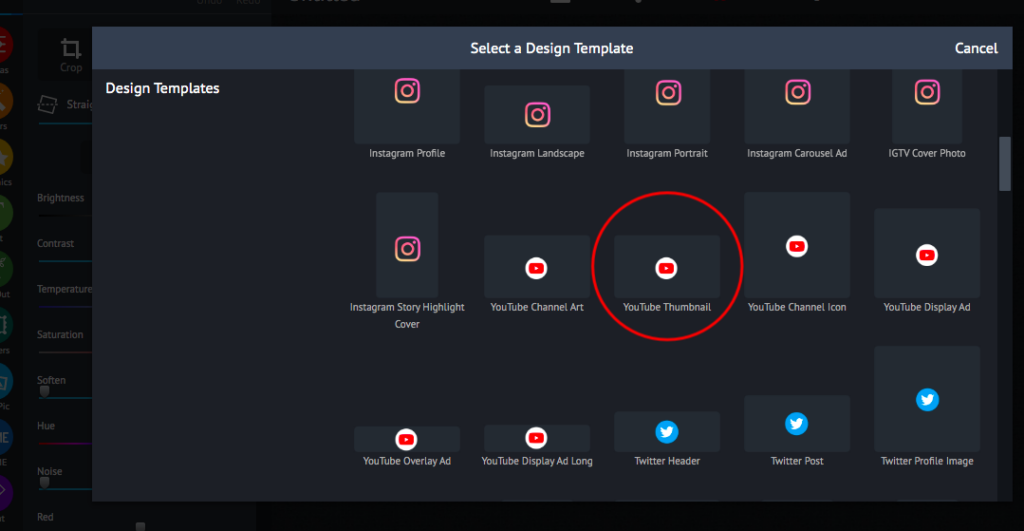
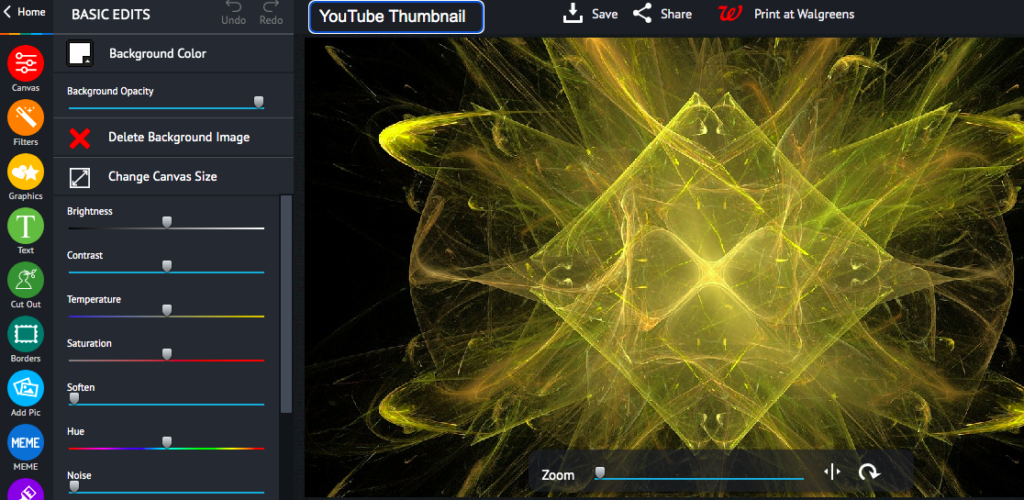
2. Go to BLANK CANVAS to get the YouTube thumbnail template size.

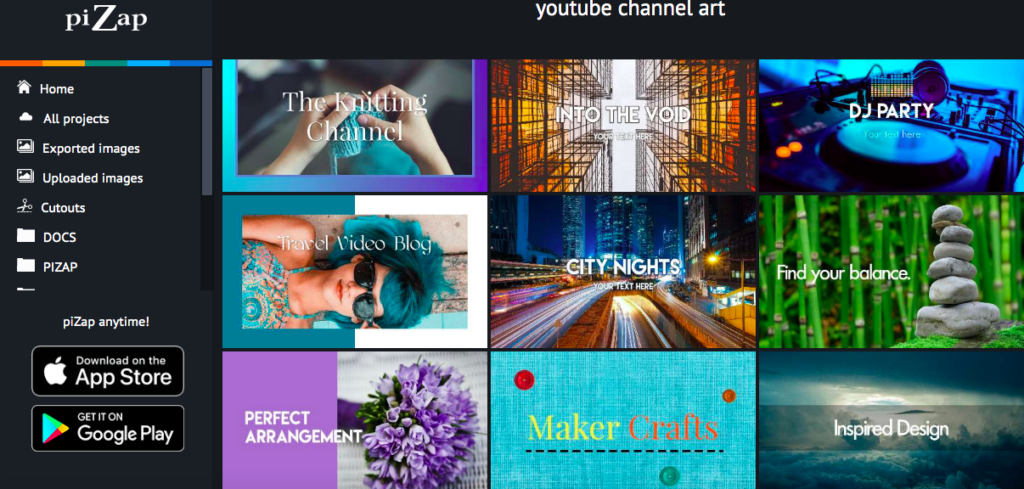
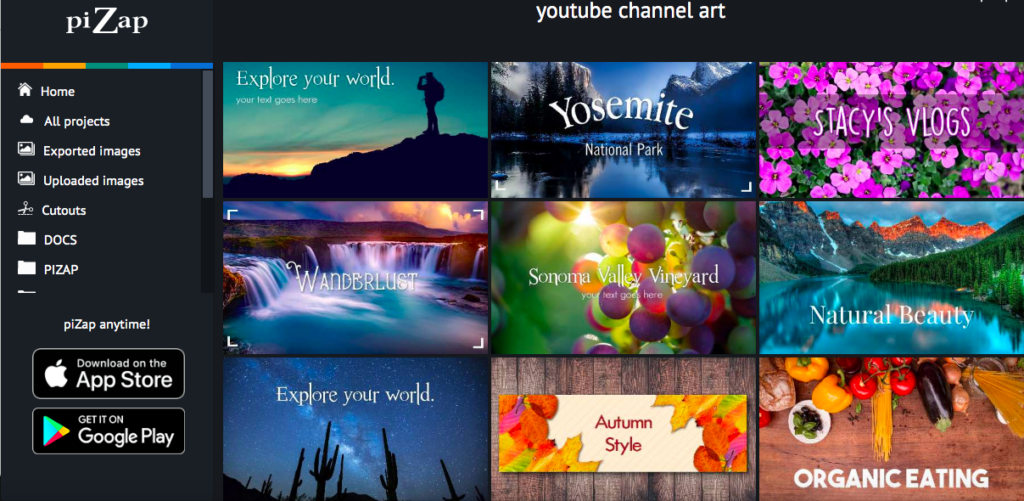
3. Aside from the YouTube thumbnail template size, you will find various YouTube templates such as YouTube Channel Art, Icon, Display Ad, Overlay Ad, and Display Ad Long templates. Click the YouTube Thumbnail template to start with your project.

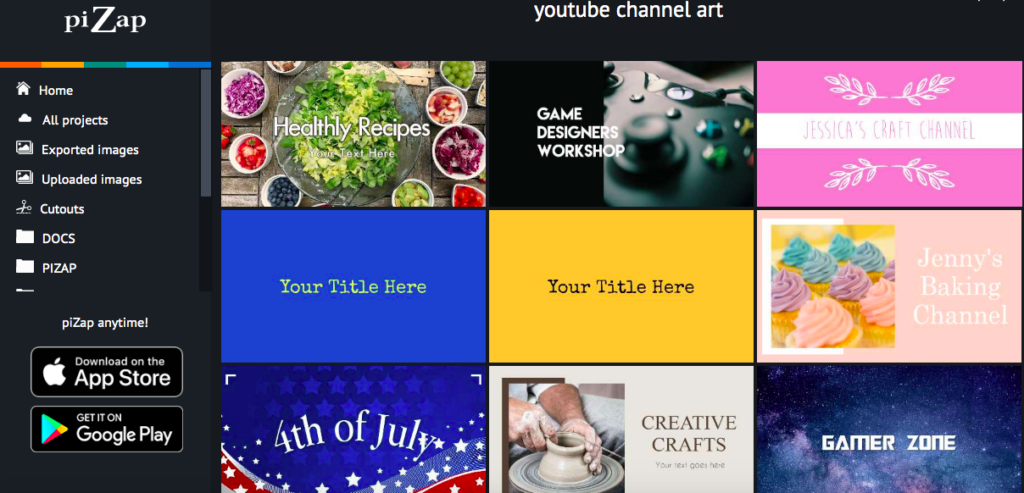
4. Upload the photo you want to use for your thumbnail. You can either upload a photo from your computer, or choose one from piZap’s ready made YouTube Channel Art templates.

5. Use the tools in the left-hand sidebar to add text, shapes, and other elements to your thumbnail. You can also apply filters and effects to give your thumbnail a unique look.

6. When you’re happy with your thumbnail, click the “Save” button in the top-right corner of the screen. Then, choose whether you want to download it as a JPEG or PNG file. And that’s it! You’ve now created a professional-looking YouTube thumbnail using piZap.

You can also use PiZap’s tools to crop, resize, and edit your image until it’s perfect. Once you’re happy with your thumbnail, simply download it and upload it to YouTube. Now all that’s left to do is sit back and watch the views pour in!

If you want to watch some #piZaptutorials on how to create a YouTube Thumbnail using piZap, you can check out the YouTube video tutorials below.

That’s all there is to it! With piZap, creating a professional-looking YouTube thumbnail is a breeze. 🙂

eCommerce Product Photography Tips for Online Sellers

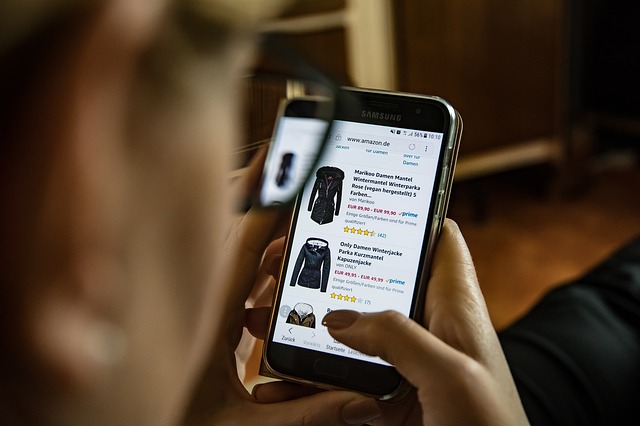
There’s no denying that product photography is one of the most important aspects of online selling. After all, a picture is worth a thousand words, and when it comes to selling products, a quality photo can be the difference between a sale and a lost customer. However, taking professional-looking photos of your products doesn’t have to be expensive or time-consuming. With a little practice and some simple photo editing tips, you can take photos that will make your products look their best.

1. Use natural light whenever possible. sunlight gives your photos a warm, natural glow that makes products look inviting. If you can’t take your photos outdoors, set up near a window with plenty of light.

2. Get close up. Nobody wants to see a tiny product in the corner of a photo. Fill the frame with your product so potential buyers can get a good look at it.

piZap app in iOS phone device

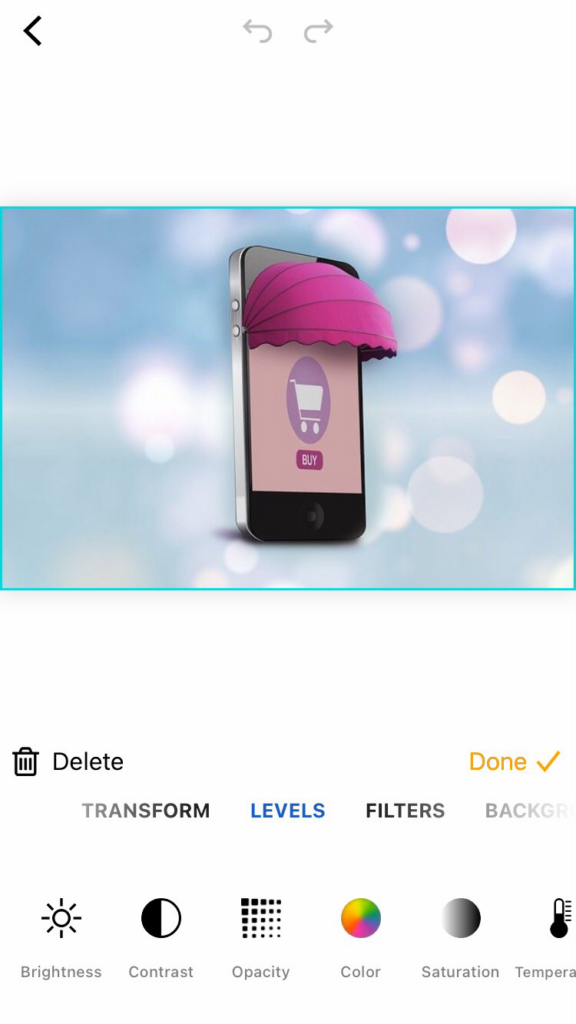
3. Edit, edit, edit! Don’t be afraid to spend some time editing your photos to make them look perfect. You can use the piZap photo editor app on your mobile device that will make it easy to erase background or touch up your photos. Try piZap and download the piZap app for iOS devices and Android devices.

piZap app in iOS phone device

4. Have fun! Taking product photos doesn’t have to be boring. Get creative with piZap in editing your products — and have fun with it! Set up fun props or features that show off your product in a unique way. Watch some of the piZap tutorials available on YouTube to give you some creative ideas!

By following these simple tips, you can take quality product photos that will help you sell more products online. So get out there and start snapping some pictures!

Background Eraser on the Mobile App

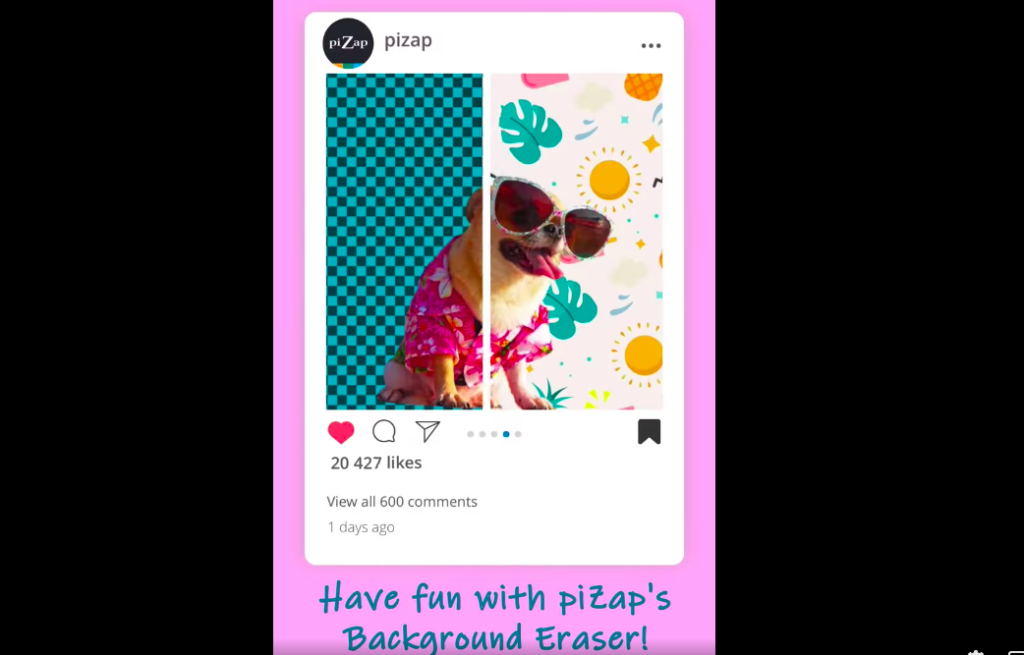
PiZap Background Eraser Tool

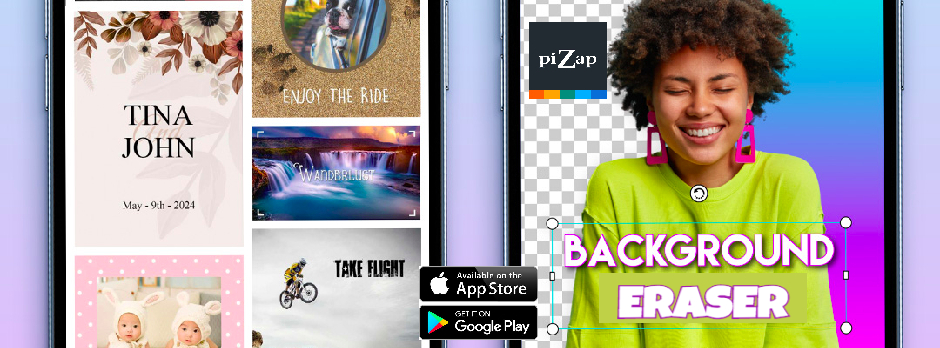
Background removal is one of the most tedious tasks in photo editing. It can take hours to carefully select and erase the background from a photo, only to have it look uneven and unpolished. But with piZap’s Automatic Background Eraser, you can achieve perfectly smooth and evenly removed backgrounds in just seconds!

piZap photo editor uses artificial intelligence to automatically identify and remove backgrounds from photos, and the results are amazingly realistic. Whether you’re a professional photographer or just someone who likes to play around with photos, automatic background remover is a must-have tool. With the piZap photo editor, you’ll be able to create perfectly polished photos in no time at all!

It’s Simply Easy!

  1. Open the piZap mobile app.
  2. Choose BACKGROUND ERASER.
  3. Select an image to edit.
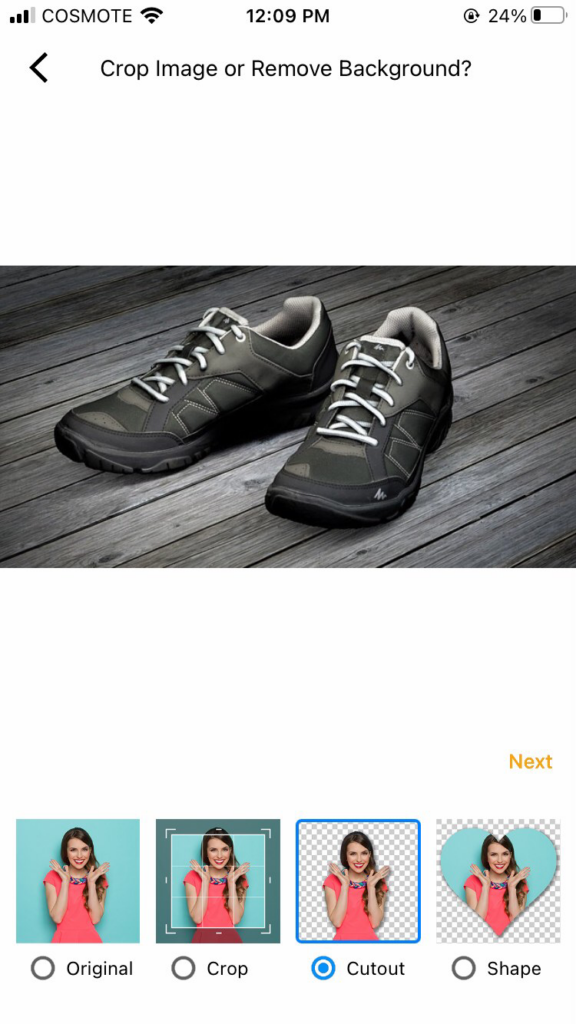
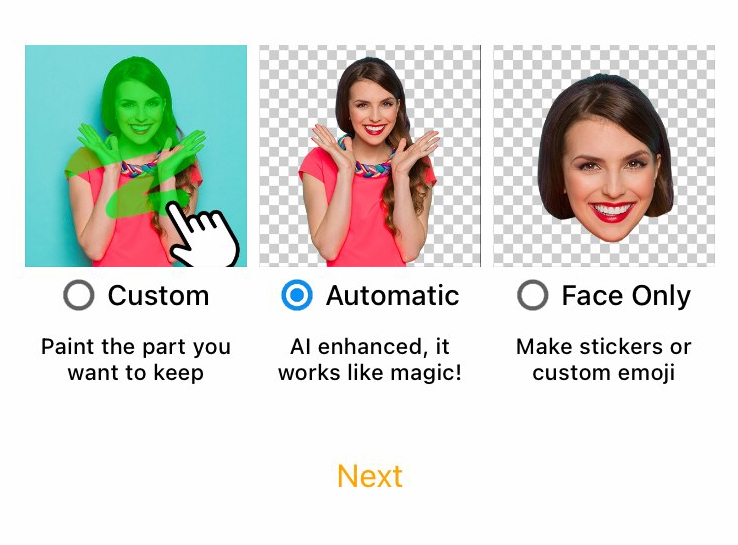
  4. Tap the Cutout option to erase the background of your image.
  5. Choose the option AUTOMATIC. The AI system will work like magic!
  6. Your image will be ready in seconds. (Sometimes loading of the finish image may take time depending on your internet connection and/or image size.
  7. Once background has been removed, you can choose any background of your choice! Choose ADD BACKGROUND IMAGE
  8. Tap DONE and SAVE (upper right corner tab) to save and/or share.

The one-click background eraser is available in the piZap Mobile App for iOS users! It’s a Pro subscriber feature, so if you already have a Pro subscription then you have unlimited access on the piZap features. If you don’t have a Pro subscription, you can upgrade or purchase one here: piZap subscription plan.