Category Archives: templates

Mastering Social Media Image Sizes with piZap: A Visual Guide (Updated 2023)

social media image sizes

Are you tired of your social media images getting cropped or distorted? Do you want to make your profiles and posts look picture-perfect in 2023? Look no further! We’ll walk you through the essential image sizes for popular social media platforms as of 2023, and we’ll show you how to easily create and edit images using the fantastic piZap photo editor.

Facebook

  • Profile Picture: 170 x 170 pixels
  • Cover Photo: 820 x 312 pixels
  • Shared Image: 1200 x 630 pixels
  • Event Image: 1920 x 1080 pixels

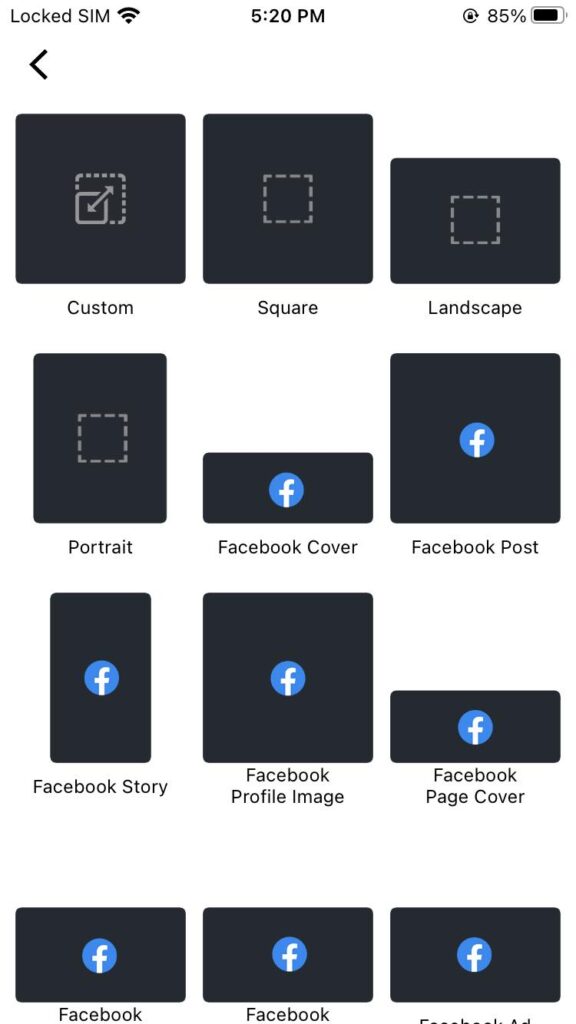
piZap Pro Tip: To resize and create stunning Facebook images, open piZap and choose the Blank Canvas and find the Facebook template. Import your image and crop/resize as needed. Add filters, text, or stickers to make your posts pop!

Instagram

  • Profile Picture: 110 x 110 pixels
  • Square Post: 1080 x 1080 pixels
  • Landscape Post: 1080 x 608 pixels
  • Portrait Post: 1080 x 1350 pixels

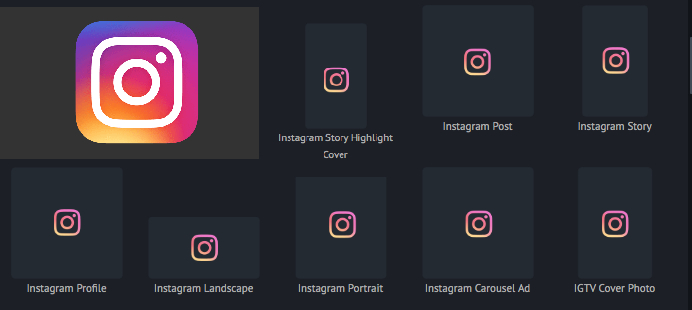
piZap Pro Tip: For Instagram-ready images, use the piZap Instagram template. Import your photo, add filters and adjust the dimensions. Don’t forget to apply some cool effects!
Twitter (X):

  • Profile Picture: 400 x 400 pixels
  • Header Image: 1500 x 500 pixels
  • In-Stream Image: Minimum 440 x 220 pixels

piZap Pro Tip: Craft eye-catching Twitter (X) visuals with piZap. Start with the Twitter (X) template, upload your image, resize, and add fun text overlays. Your tweets will stand out!

LinkedIn:

  • Profile Picture: 400 x 400 pixels
  • Background Image: 1584 x 396 pixels
  • Company Logo: 300 x 300 pixels
  • Shared Image: 1200 x 627 pixels

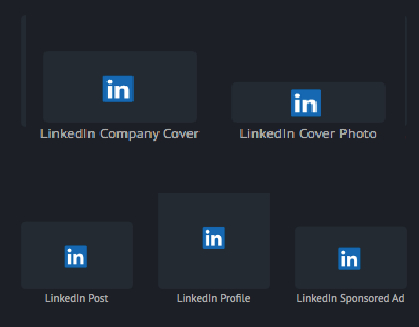
piZap Pro Tip: Impress your professional network with polished LinkedIn visuals. Use piZap’s LinkedIn template, adjust the image size, and add elegant text and graphics.
Pinterest:

  • Profile Picture: 165 x 165 pixels
  • Pin Image: 1000 x 1500 pixels
  • Board Cover: 800 x 450 pixels

piZap Pro Tip: Get creative on Pinterest with piZap’s Pin template. Design striking pins by resizing your image, adding pins’ signature text, and beautiful graphics.
YouTube:

  • Profile Picture: 800 x 800 pixels
  • Channel Cover: 2560 x 1440 pixels (desktop), 1546 x 423 pixels (mobile)
  • Video Thumbnail: 1280 x 720 pixels

piZap Pro Tip: Make your YouTube channel shine with customized graphics. Use the piZap YouTube template, resize your image, and create captivating thumbnails.

Snapchat:

  • Geofilter: 1080 x 1920 pixels

piZap Pro Tip: Design trendy Snapchat geofilters effortlessly in piZap. Start with the Snapchat geofilter template, add your image, adjust the size, and let your creativity flow!

TikTok:

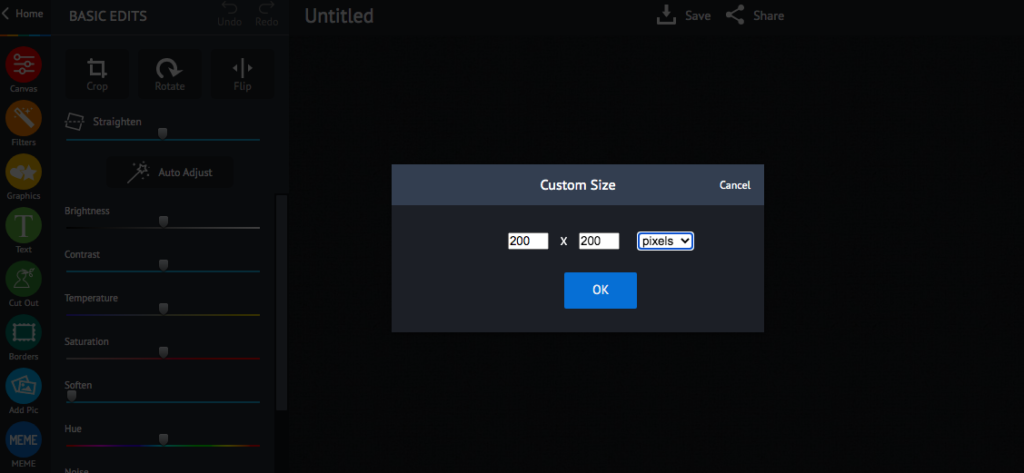
  • Profile Picture: 200 x 200 pixels
  • Video Thumbnail: 720 x 1280 pixels (9:16 ratio)
  • TikTok Cover Image: 1080 x 1920 pixels

piZap Pro Tip: Elevate your TikTok game with piZap’s custom size feature. Crop your image to the perfect dimensions, add effects, and watch your videos go viral!

With piZap, mastering social media image sizes in 2023 is a breeze! Whether you’re a seasoned social media guru or just getting started, using piZap’s templates and tools can help you create stunning visuals that will grab attention and engage your audience. Don’t let image sizes hold you back—give piZap a try and make your social media presence shine! Visit piZap to explore and get started today. Happy creating!


PIMP YOUR PROFILE: THE PERFECT TWITTER (X) HEADER SIZE & BEST PRACTICES WITH PIZAP PHOTO EDITOR!

Are you ready to take your Twitter (X) game to the next level? Your Twitter (X) header is your canvas, and with PiZap Photo Editor, you can turn it into a masterpiece! In this article, we’ll explore the perfect Twitter (X) header size and some best practices to make your profile stand out in the crowded Twitterverse.

Why Does Your Twitter (X) Header Matter?

Your Twitter (X) header is the first thing visitors see when they land on your profile. It’s like the cover of your digital book, and you want to make a great first impression. So, let’s start by talking about the ideal Twitter (X) header size.

The Perfect Twitter (X) Header Size

Twitter (X) is all about being responsive, and your header needs to be too. Here’s the magic number: 1500 pixels wide by 500 pixels tall. This size ensures your header looks fantastic on both desktop and mobile devices, providing a consistent brand experience for your audience.

Best Practices for a Stunning Twitter Header

Now that you have the right dimensions, let’s dive into some best practices:

1. Be Brand Savvy: Your Twitter header is a great place to showcase your brand’s personality. Use your brand colors, fonts, and imagery to create a cohesive look.

2. Tell Your Story: A picture is worth a thousand words, right? Use your header image to tell a visual story about your brand or your interests.

3. Highlight Your Latest Campaign: If you’re promoting a campaign or an event, your header can be a dynamic billboard for it. Just make sure to keep it updated!

4. Keep It Simple: Sometimes, less is more. A clean, minimalistic header can be just as effective as an intricate design.

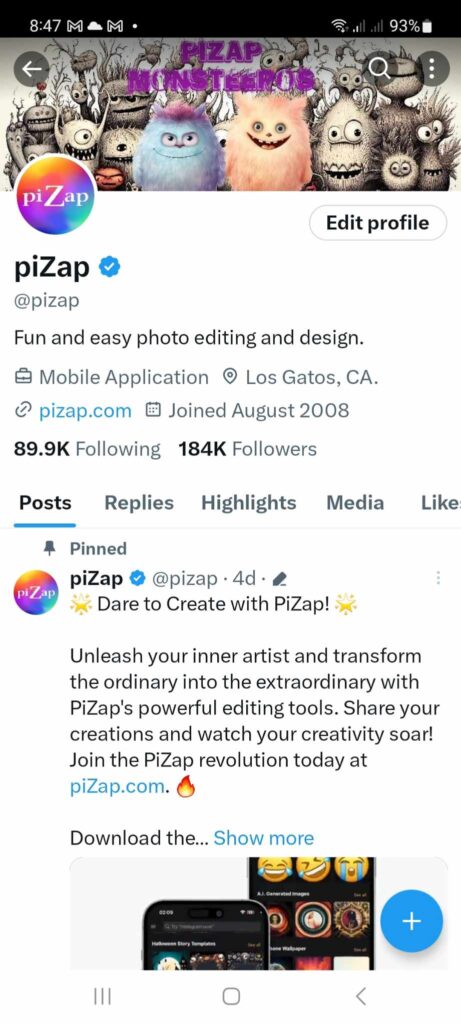
5. Test for Mobile: Don’t forget to check how your header looks on mobile devices. Twitter (X) crops the sides, so ensure the focal point of your image is centered.

Creating Your Perfect Twitter (X) Header with PiZap

Now that you know the size and best practices, it’s time to put your creative hat on and make a stunning Twitter header using PiZap Photo Editor. PiZap offers a user-friendly platform with a wide range of tools and templates to help you unleash your creativity.

Here’s a quick tutorial:

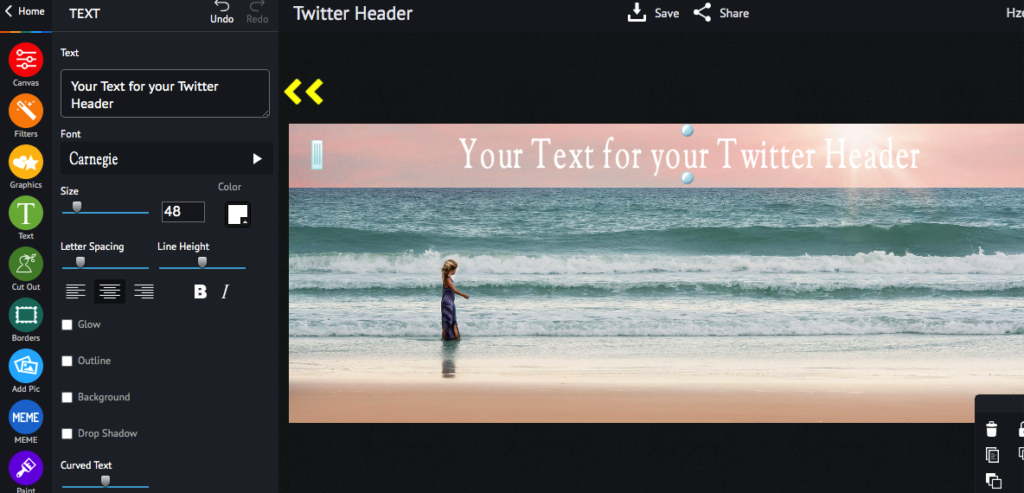
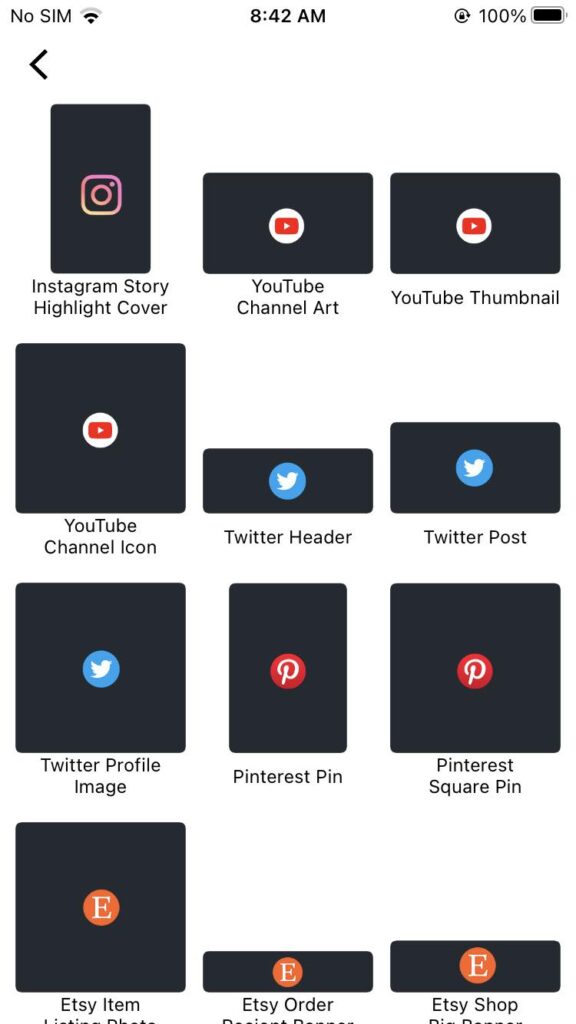
  1. Select the Twitter Header template: Start by choosing the Twitter (X) Header template in the right dimensions, 1500×500 pixels.
  2. Customize with text and graphics: Add your brand name, a catchy slogan, or any other text you want. Experiment with different fonts and colors.
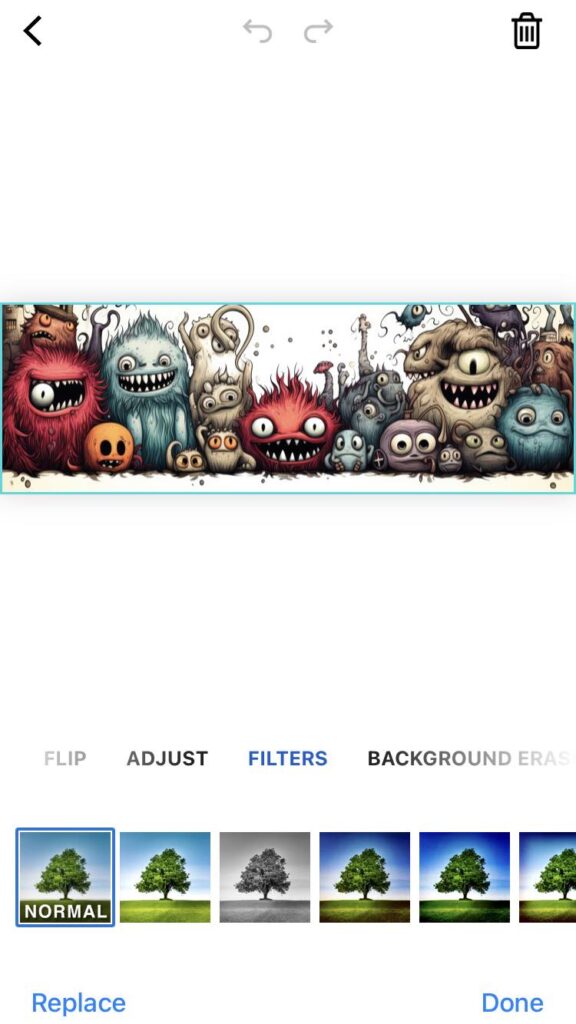
  3. Import images: Upload images that represent your brand or message. PiZap allows you to crop, resize, and apply filters to make them perfect.
  4. Get creative: Add stickers, overlays, and effects to make your header unique and eye-catching.
  5. Save and upload: Once you’re satisfied, save your masterpiece and upload it to your Twitter (X) profile.

With PiZap Photo Editor, you can let your imagination run wild and create a Twitter (X) header that truly stands out!

Final Thoughts

Your Twitter (X) header is an opportunity to leave a lasting impression on your audience. By following the perfect Twitter (X) header size and best practices, and using the creative power of PiZap Photo Editor, you can turn your profile into a work of art that tells your unique story.

So, go ahead, unleash your creativity, and let your Twitter (X) header shine in the social media spotlight!

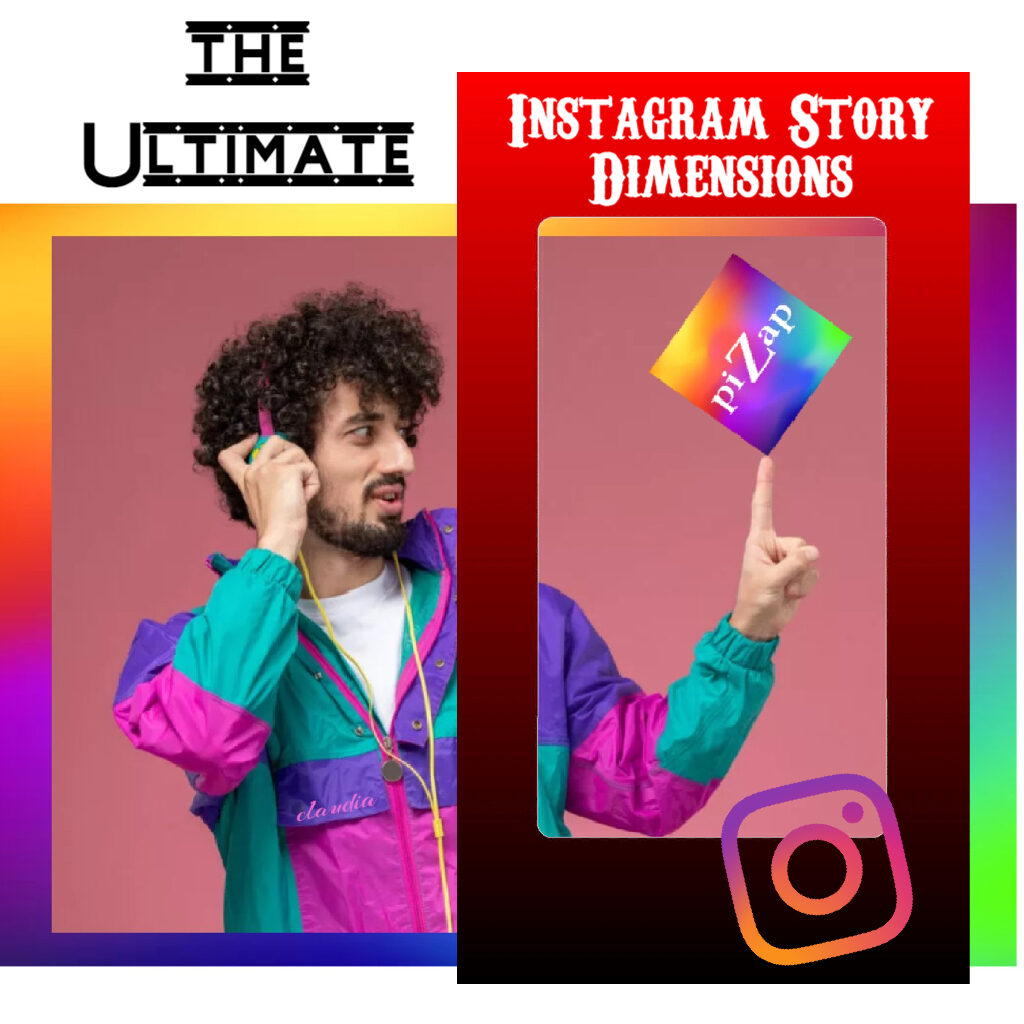
The Ultimate Instagram Story Dimensions: Make Your Content Pop with piZap IG Story Templates!

Photo courtesy of Claudia Saurenmann

In the world of Instagram, storytelling is an art, and your canvas is the Instagram Story. Whether you’re sharing a glimpse of your daily life, promoting your business, or simply trying to engage your audience, knowing the perfect Instagram Story dimensions is essential to make your stories stand out. We’ll dive into the world of Instagram Story dimensions and provide you with the perfect recipe for creating stunning Stories with piZap IG Story templates that will grab your followers’ attention.

The Goldilocks of Dimensions

Instagram Stories are known for their ephemeral nature, appearing at the top of your followers’ feeds for just 24 hours. This sense of urgency makes it all the more important to get the dimensions right.

www.piZap.com

Understanding Instagram Story Dimensions

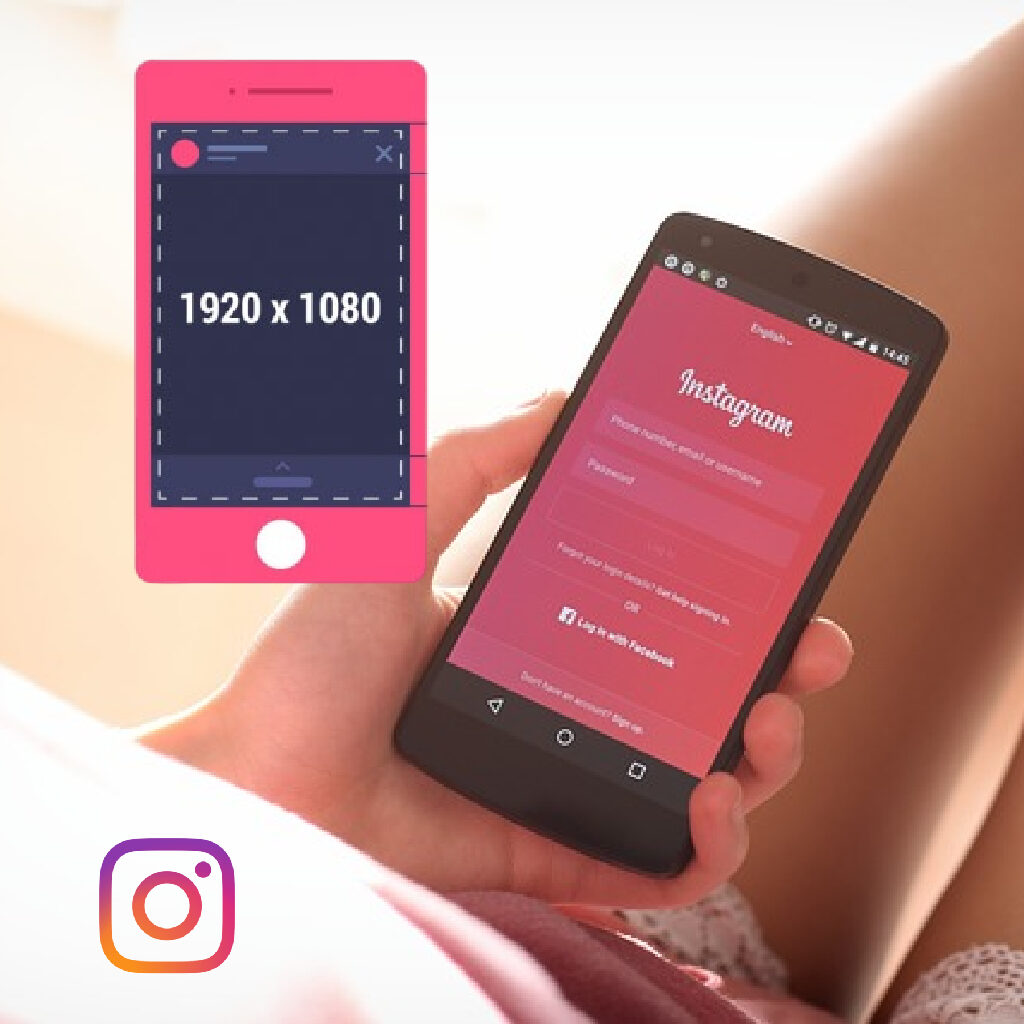
Before we jump into crafting the perfect Instagram Story, let’s take a moment to understand the ideal dimensions. Instagram Stories are meant to be displayed in a vertical format, optimized for mobile devices. For 2023, the perfect dimensions for Instagram Stories are:

  • Aspect Ratio: 9:16
  • Resolution: 1080 pixels wide by 1920 pixels tall
www.piZap.com

The said dimensions would mean that your IG story photo or video will have to be 1080 pixels wide by 1920 pixels in height. Remember, keeping your content within these dimensions ensures that your Stories look crisp and professional.

To help you visualize the perfect Instagram Story dimensions, below is a sample image.

  • Photo Story: Share your favorite Super Bowl memories with your audience. Use 1080×1920 pixels to maintain image clarity.
www.piZap.com

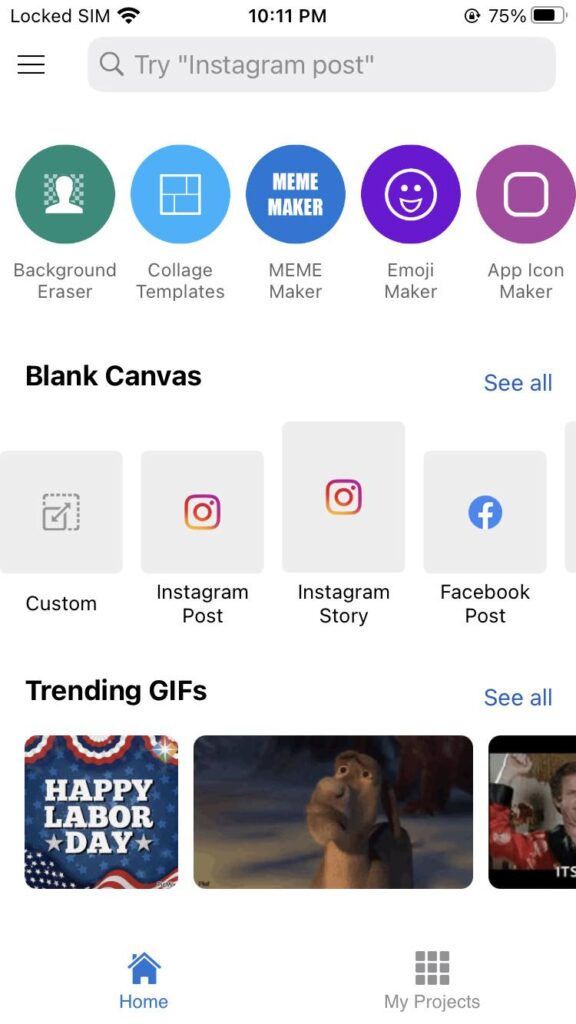
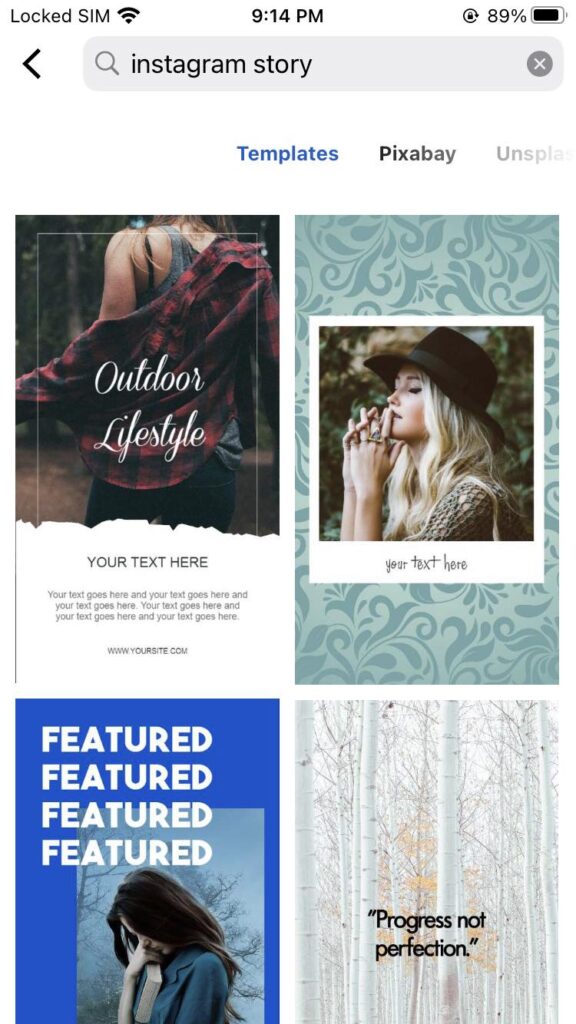
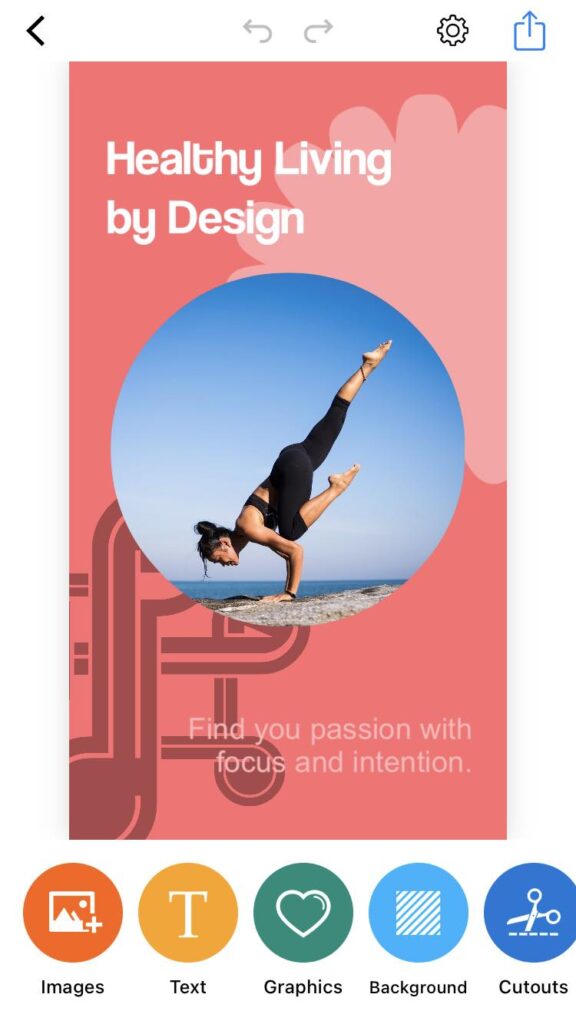
PiZap has a ready template for your IG Stories. You can check that in your piZap app under Blank Canvas in iOS or Android device. You simply add your photos and texts to get an instant IG story post!

piZap app in iOS device

piZap’s Instagram Story Templates

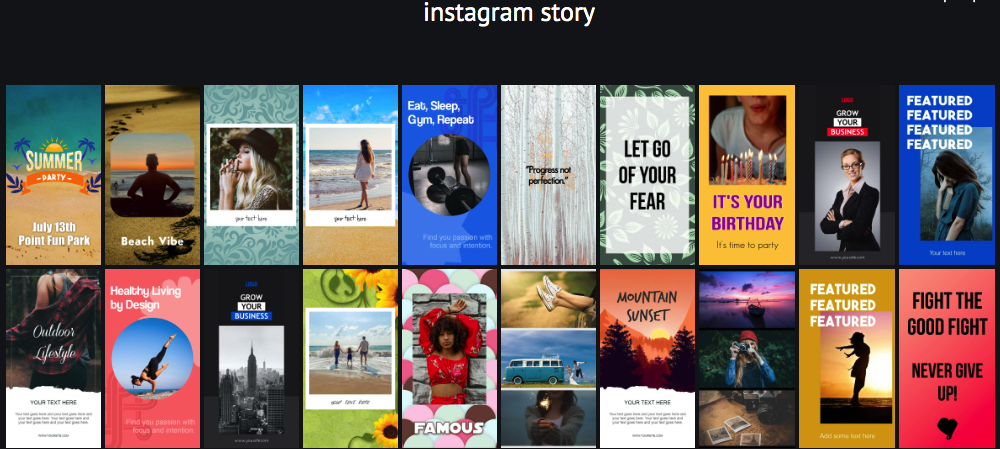
Creating visually stunning Stories can be a daunting task, but piZap is here to simplify the process with its collection of Instagram Story templates. Let’s take a look at some of the templates you can use right away.

www.piZap.com

With piZap’s Instagram Story templates, you’ll have a toolbox of eye-catching designs at your fingertips, ensuring that your Stories consistently look professional and engaging.

How to Use piZap’s Instagram Story Templates

  1. Visit piZap’s website or use your piZap app in iOS or Android device and log in to your account.
  2. Select “Instagram Story Templates” from the template gallery.
  3. Browse through the templates and choose the one that suits your content.
  4. Customize the template by adding your own images, text, and stickers.
  5. Preview your creation and make any necessary adjustments.
  6. Once you’re satisfied, save your Instagram Story and share it directly to your Instagram account.
piZap app in iOS device
  • Text Overlay: Spice up your Story with stylish text overlays. The 9:16 aspect ratio ensures your text fits perfectly.
piZap app in iOS device
  • Promotions and Deals: If you’re a business, create attention-grabbing promotions and discounts with these dimensions.
piZap app in iOS device

So, whether you’re sharing your adventures, culinary creations, fashion inspirations, motivational quotes, or products, make sure to use the perfect Instagram Story dimensions and take advantage of piZap’s templates to leave a lasting impression on your Instagram audience. Elevate your Stories today and watch your engagement soar! 🚀

Remember that Instagram’s features and guidelines may change over time, so it’s essential to stay updated with the latest information. Enjoy sharing your Stories with the world, and happy Instagramming! 📸✨
piZap app in iOS device

Get Ready for Back-to-School with AI-Powered Templates and Stickers in piZap!
www.piZap.com

Are you feeling the excitement in the air? The back-to-school season is just around the corner, and what better way to gear up for it than with some fantastic AI-powered templates and stickers from piZap! Whether you’re a student, teacher, or parent, piZap’s innovative tools are here to make your back-to-school experience even more vibrant and creative.

www.piZap.com

Revolutionizing Back-to-School Prep with AI:
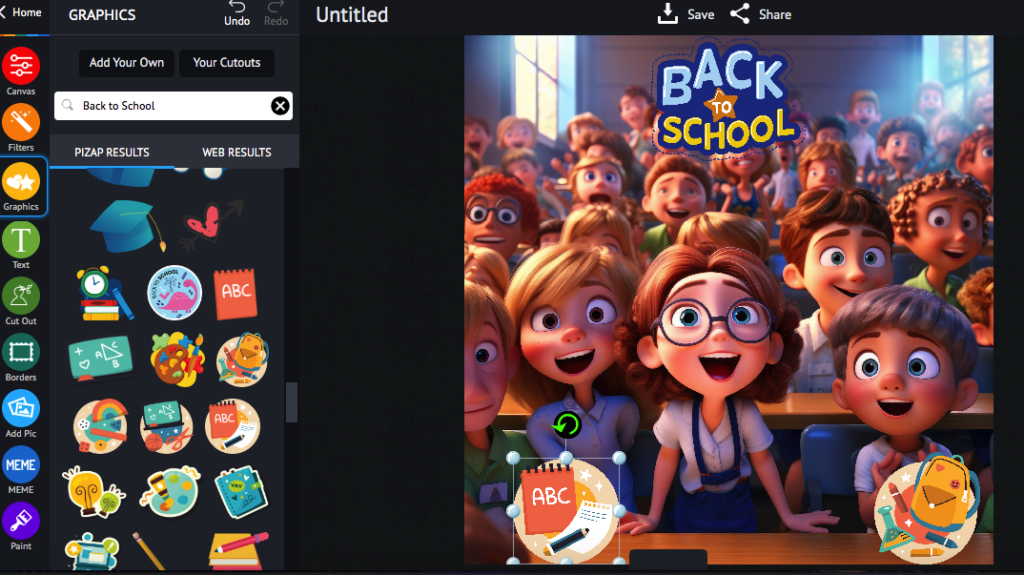
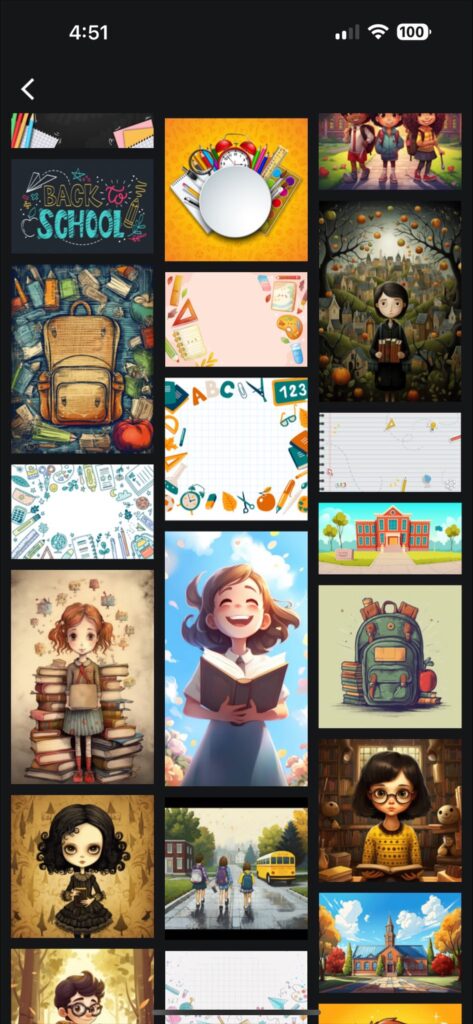
PiZap, the cutting-edge online photo and design tool, is taking the back-to-school game to a whole new level with their AI-powered templates and stickers. No more generic designs or overused clipart – piZap’s AI algorithms generate stunning, one-of-a-kind visuals that are tailor-made for your back-to-school needs. From colorful classroom banners to eye-catching bulletin board displays, piZap’s AI ensures that every project shines with a personalized touch.

piZap app in iOS device

Personalize Your School Supplies with Playful Stickers:
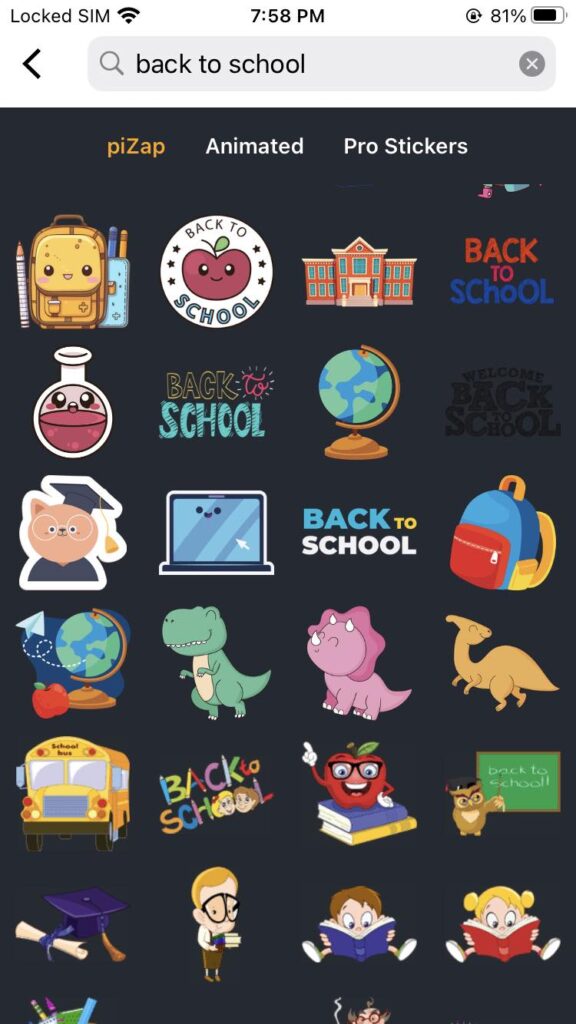
Inject a dose of fun and personality into your back-to-school essentials using piZap’s quirky stickers. From adorable pencil stickers to motivational quote bubbles, there’s a sticker for every mood and moment. Whether you’re labeling notebooks, decorating your laptop, or simply adding flair to your textbooks, these stickers will ensure your gear stands out from the crowd.

piZap app in iOS device

Why Choose piZap?
piZap stands as a trailblazer in the world of AI-driven creativity. Its user-friendly interface and robust tools empower everyone to create visually stunning designs without the need for advanced graphic design skills. Back-to-school prep has never been this exciting, and piZap ensures you’re armed with the best tools to make this academic year truly remarkable.

Back-to-school template in piZap

Share Your Masterpieces with the World:
Once you’ve whipped up your back-to-school magic using piZap’s templates and stickers, don’t keep it to yourself! Share your creations on social media to inspire others and spread the back-to-school joy. Whether it’s Instagram, Facebook, Twitter, or Pinterest, your posts will be sure to catch the attention of fellow students, teachers, and parents looking to add a touch of creativity to their educational journey.

Back-to-school template in piZap

As the back-to-school fervor heightens, piZap is your ultimate partner in infusing creativity and innovation into your academic journey. With AI-powered templates and stickers, you’ll be ready to rock the school year in style. So, unleash your imagination, personalize your supplies, and make this back-to-school season one to remember, all with the magic of piZap!

Back-to-school template in piZap

Mastering Photo Editing: A Beginner’s Guide with piZap

www.piZap.com

Are you ready to turn your everyday photos into works of art? With PiZap Photo Editor, the journey from amateur to editing pro has never been easier! Whether you’re an aspiring influencer, a small business owner, or just someone who loves sharing memories, piZap has got you covered. Let’s dive into a beginner’s guide that will have you editing like a pro in no time.

1. Getting Started with PiZap
To begin your photo editing adventure, head to the PiZap website or download the app in iOS and android devices. Creating an account will give you access to a world of editing possibilities.

piZap app in mobile device

2. Choosing Your Photo
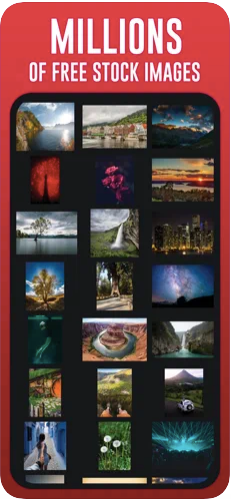
Select a photo you’d like to edit. It could be a stunning landscape, a cute pet pic, or even a selfie that needs a little magic. You can even select tons of royalty free stock images in pIZap that you can use for your projects.

3. Basic Adjustments
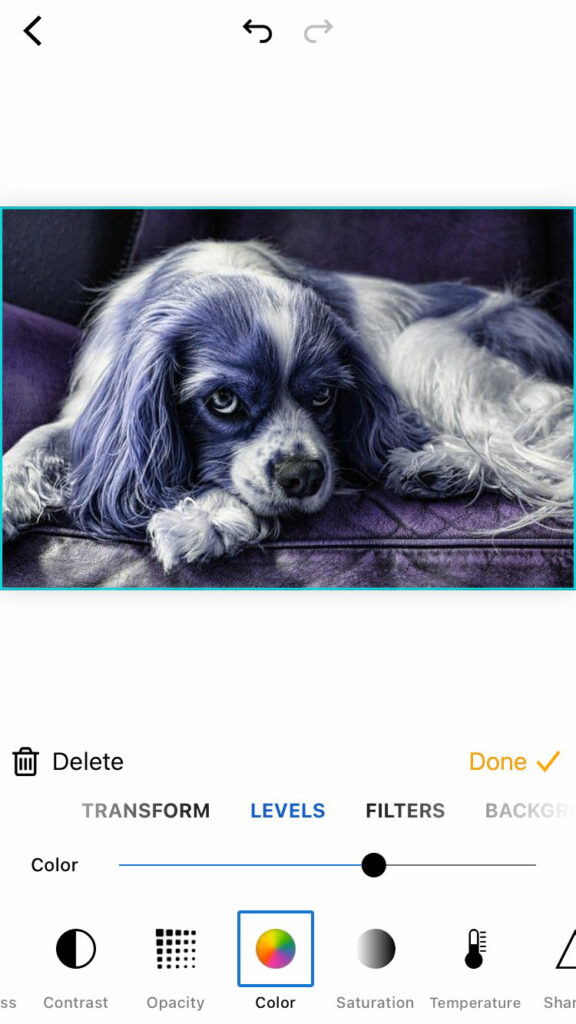
Start with the basics: adjust brightness, contrast, and saturation. Use the intuitive sliders to enhance your photo’s overall look.

piZap in iOS device

4. Exploring Filters
Give your photo a new mood by applying filters. Try the “Vintage Vibes” filter for a nostalgic touch or “Vibrant Hues” for a burst of color.

5. Adding Text and Stickers
Want to tell a story with your photo? Use PiZap‘s text and sticker tools. Add a witty caption or a heartwarming quote.

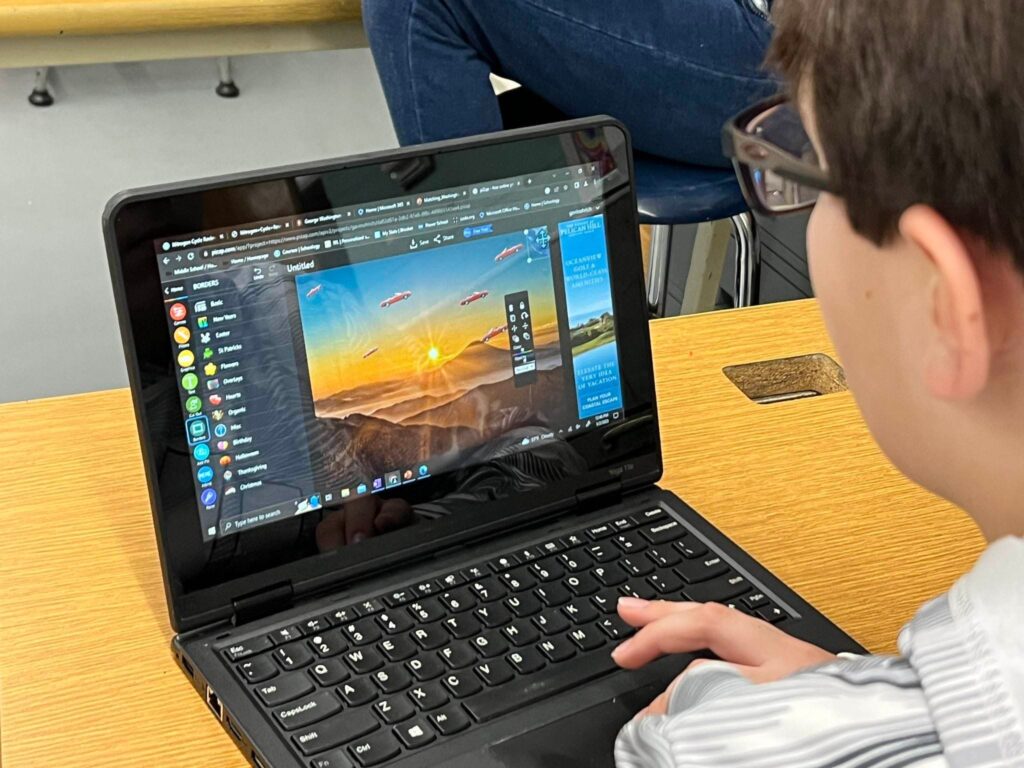
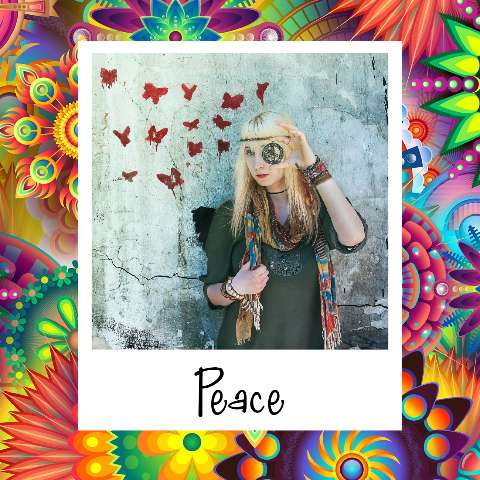
6. Creative Frames
Elevate your photo with creative frames. From classic borders to funky shapes, there’s a frame for every mood.

Special thanks to Mr Dan Wodarczak and his art class students at the Alden Central School

7. Embrace Collage Magic
Combine multiple photos into a stunning collage. Showcase different angles or tell a visual story with this feature.

www.piZap.com

8. Save and Share
Once you’re satisfied with your masterpiece, hit the save button. Now it’s time to share your creation with the world!

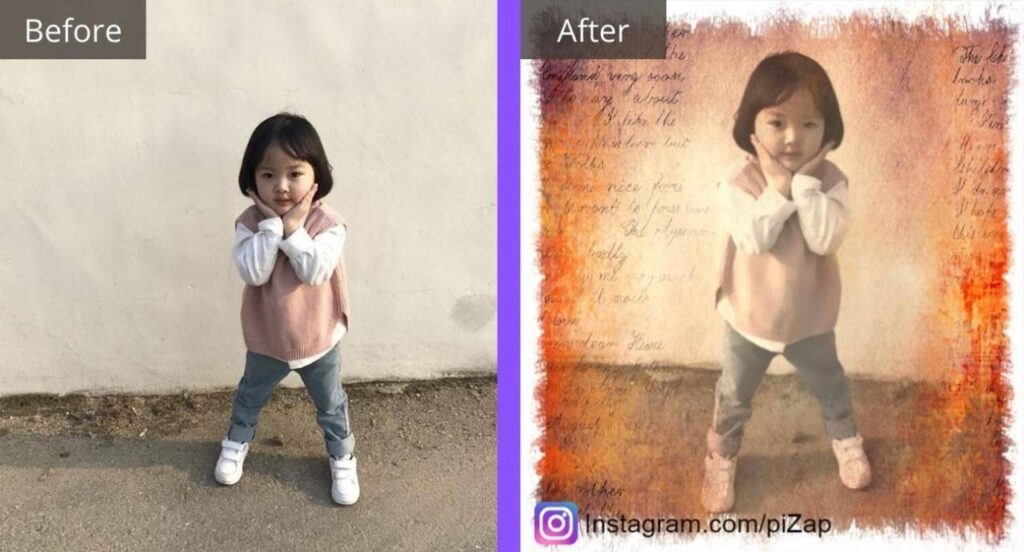
Challenge: Transform an everyday photo into something remarkable using piZap’s editing tools. Whether it’s a stunning sunset, a mouth-watering meal, or a candid shot of your furry friend, piZap can help you elevate it to the next level!

Special thanks to Mr Dan Wodarczak and his art class students at the Alden Central School

Join the piZap Community!

Ready to show off your newfound photo editing skills? Join the pizap Artists and Fans Club group on Facebook and connect with fellow enthusiasts. Share your before-and-after photos, exchange tips, and inspire others to embark on their own creative journey.

Special thanks to Lorna Saldariega

With piZap, there’s no limit to your creativity. Start your journey today and watch your photos transform into captivating pieces of art. Get ready to become the photo editing guru among your friends! 🎨✨

Get the most out of piZap Magic AI Image Maker

In today’s digital age, image editing has become an essential skill for creating captivating visuals. Whether you’re a professional photographer, a social media enthusiast, or simply someone who loves to add a creative touch to their photos, having the right image editing tool is crucial.

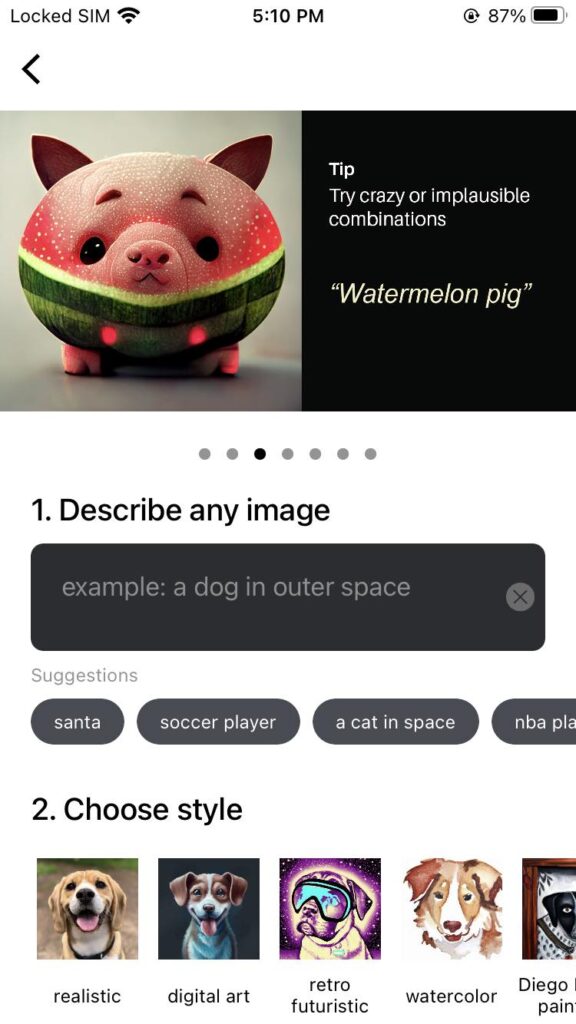
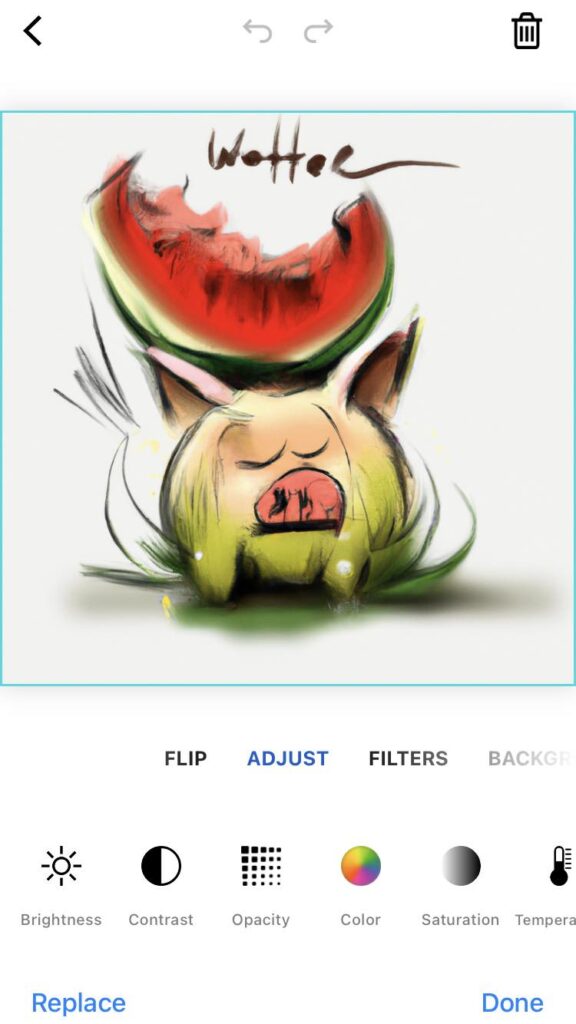
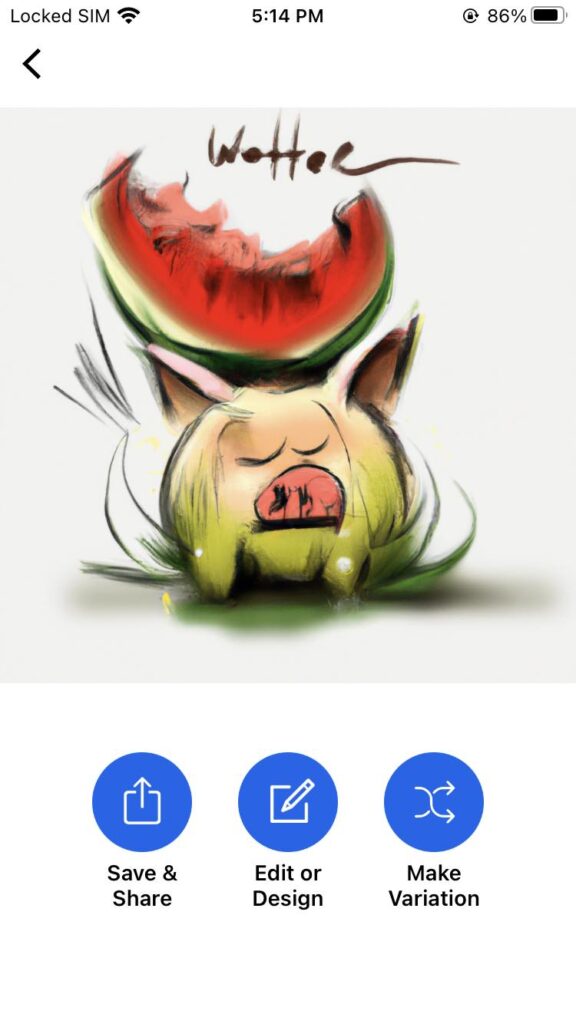
piZap Magic AI Image Maker is a versatile platform that combines the power of artificial intelligence with user-friendly features, allowing you to unleash your creativity and take your images to the next level. Here are some tips to help you get the most out of piZap Magic AI Image Maker.

Explore the Features: Take some time to familiarize yourself with the various features offered by piZap Magic AI. Experiment with different artistic style options such as REALISTIC, DIGITAL ART, RETRO FUTURISTIC, WATERCOLOR, and lots more just to see how they can transform your images.

Use the piZap Image Tools: piZap offers intelligent tools that can automatically enhance your images. Try the enhance features to quickly adjust and improve the overall look of your photos or experiment with the powered effects for artistic transformations.

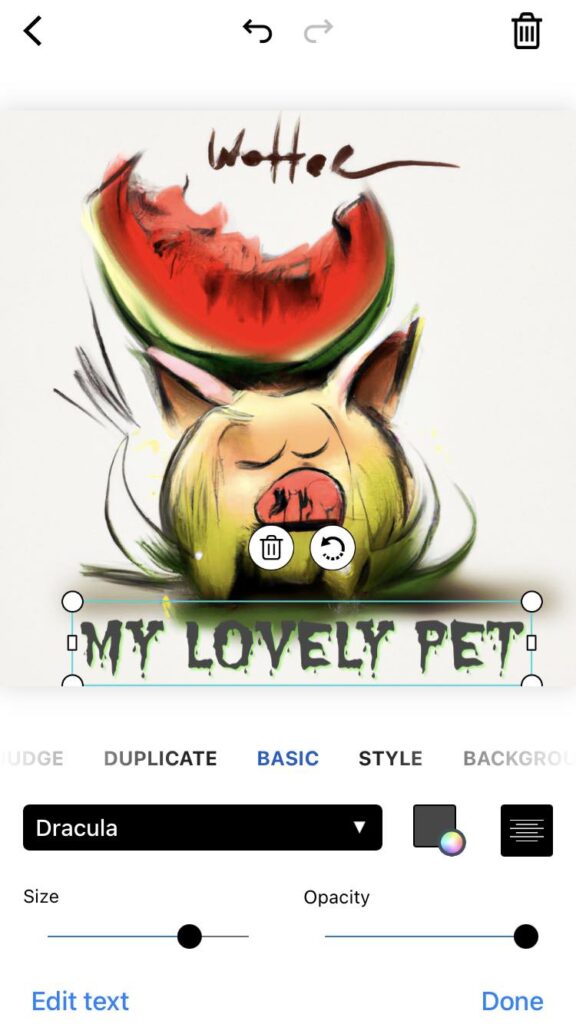
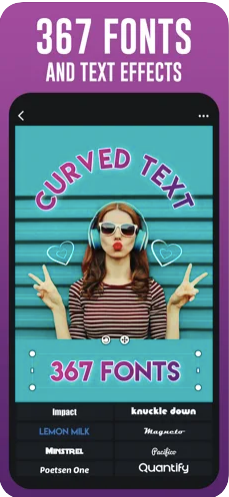
Play with Text and Stickers: Add text and stickers to your images to make them more engaging and personalized. piZap AI offers a variety of fonts, colors, and styles to choose from. Combine text and stickers creatively to create unique compositions.

Experiment with Filters: Filters can add mood and style to your images. piZap AI provides a wide range of filters to choose from. Try different filters and adjust their intensity to achieve the desired effect.

Crop and Resize: Use the cropping and resizing tools to frame your images perfectly. Adjust the aspect ratio, crop out unwanted elements, or resize your images to fit specific dimensions for different platforms or purposes.

Save and Export in High Quality: When you’re satisfied with your edits, make sure to save your images in the highest quality possible. piZap AI allows you to save your creations in various formats such as JPEG and PNG. Choose the appropriate format and adjust the image quality settings to ensure your final output is of the highest quality.

Share and Collaborate: Once you’ve created your masterpiece, share it with others! piZap AI allows you to directly share your images on social media platforms or download them for offline use. You can also collaborate with others by sharing your project files, allowing them to make further edits or modifications.

Learn from Tutorials and Examples: piZap AI provides tutorials and examples to help you learn new techniques and inspire your creativity. Take advantage of these resources to expand your skills and discover new ways to use the software. You can check the various piZap tutorials on YouTube here: http://bit.ly/2m7GsOO

Have Fun and Be Creative: The most important tip is to have fun and let your creativity flow. Explore different styles, experiment with unique ideas, and don’t be afraid to take risks. piZap AI is a powerful tool that can bring your imagination to life, so enjoy the process and let your creativity shine.

Remember, practice makes perfect, so keep exploring and experimenting with piZap Magic AI Image Maker to refine your skills and create stunning images.

Note: piZap Magic AI Image Maker is now available in Android and iOS devices.